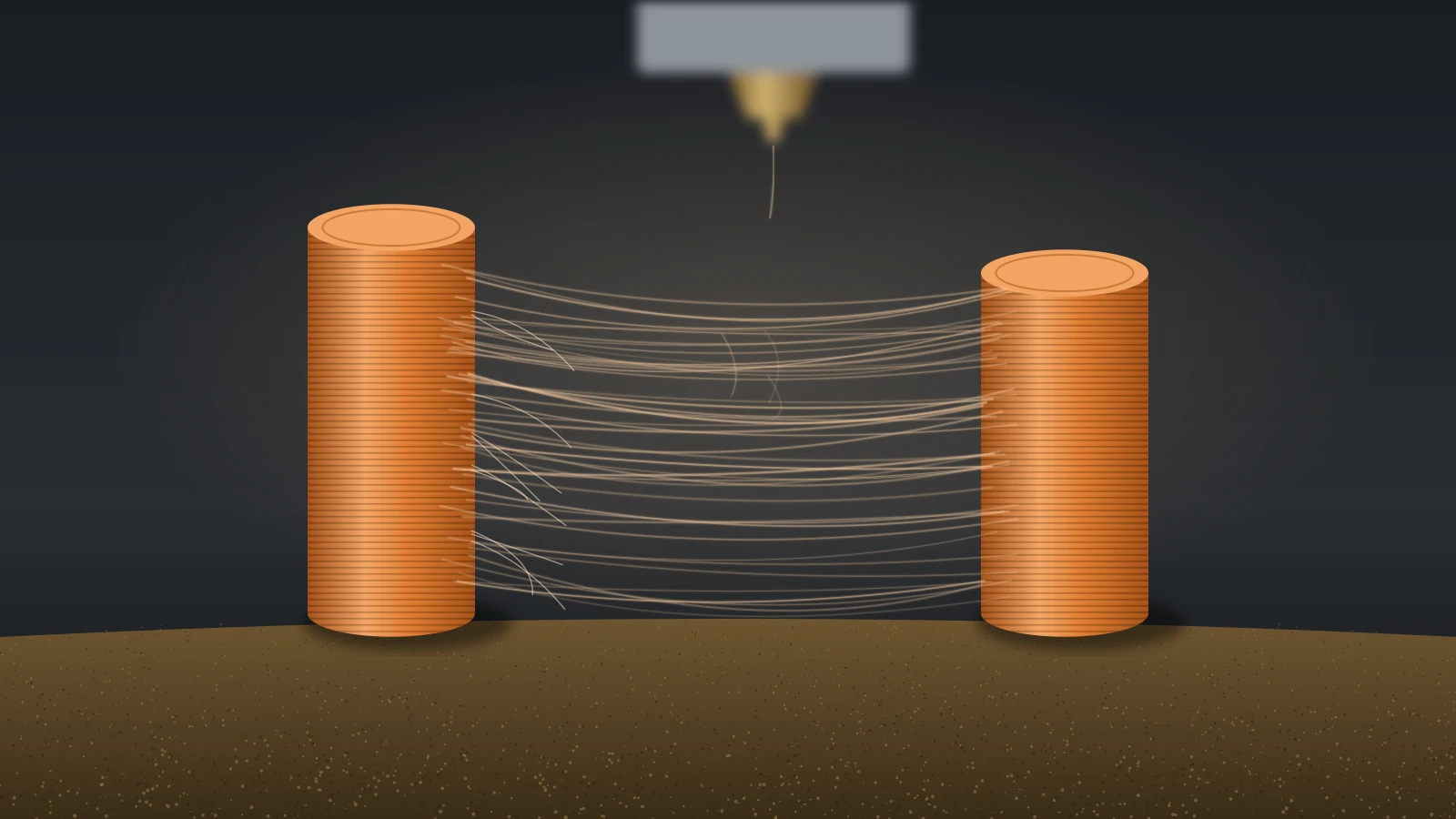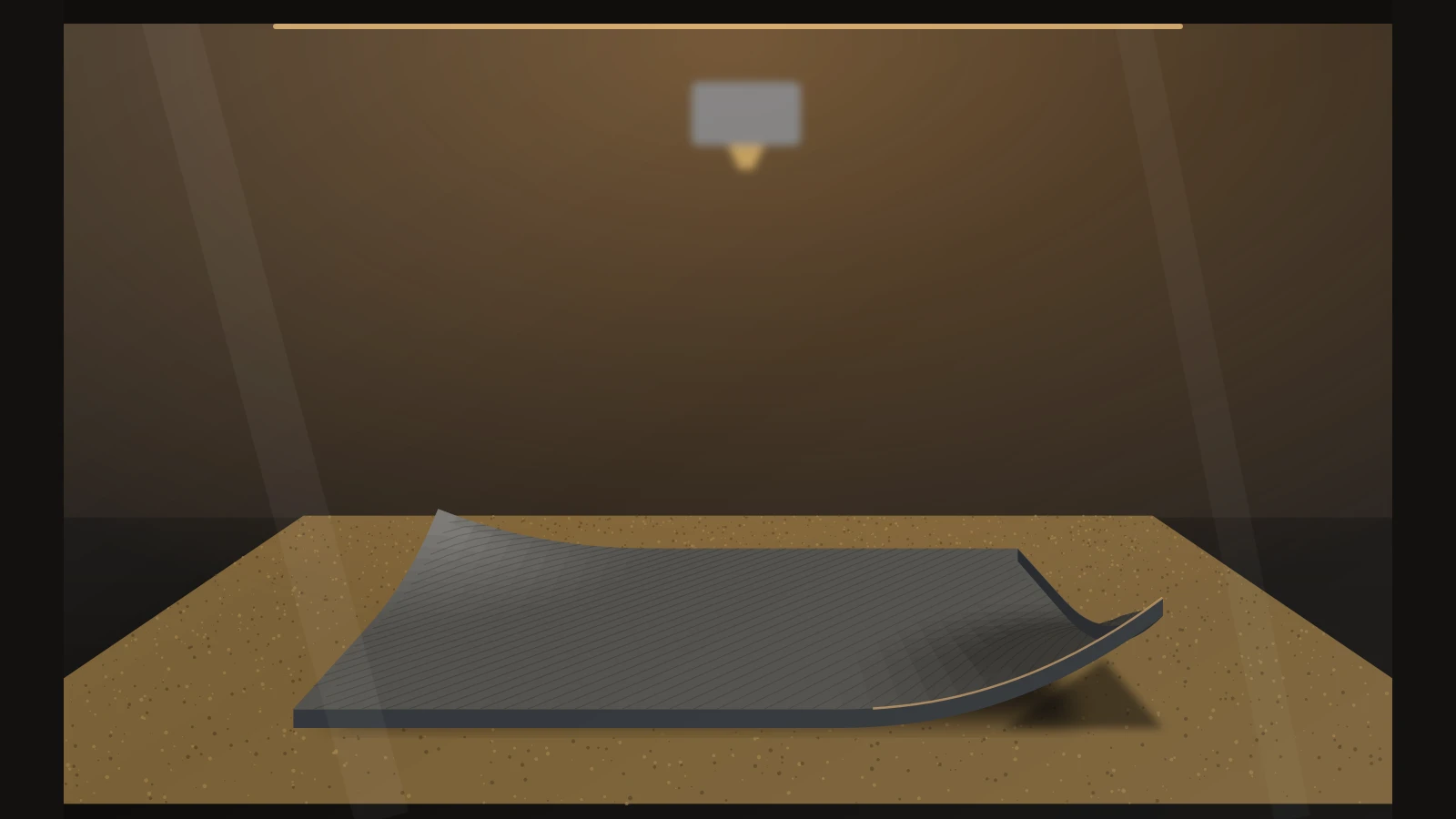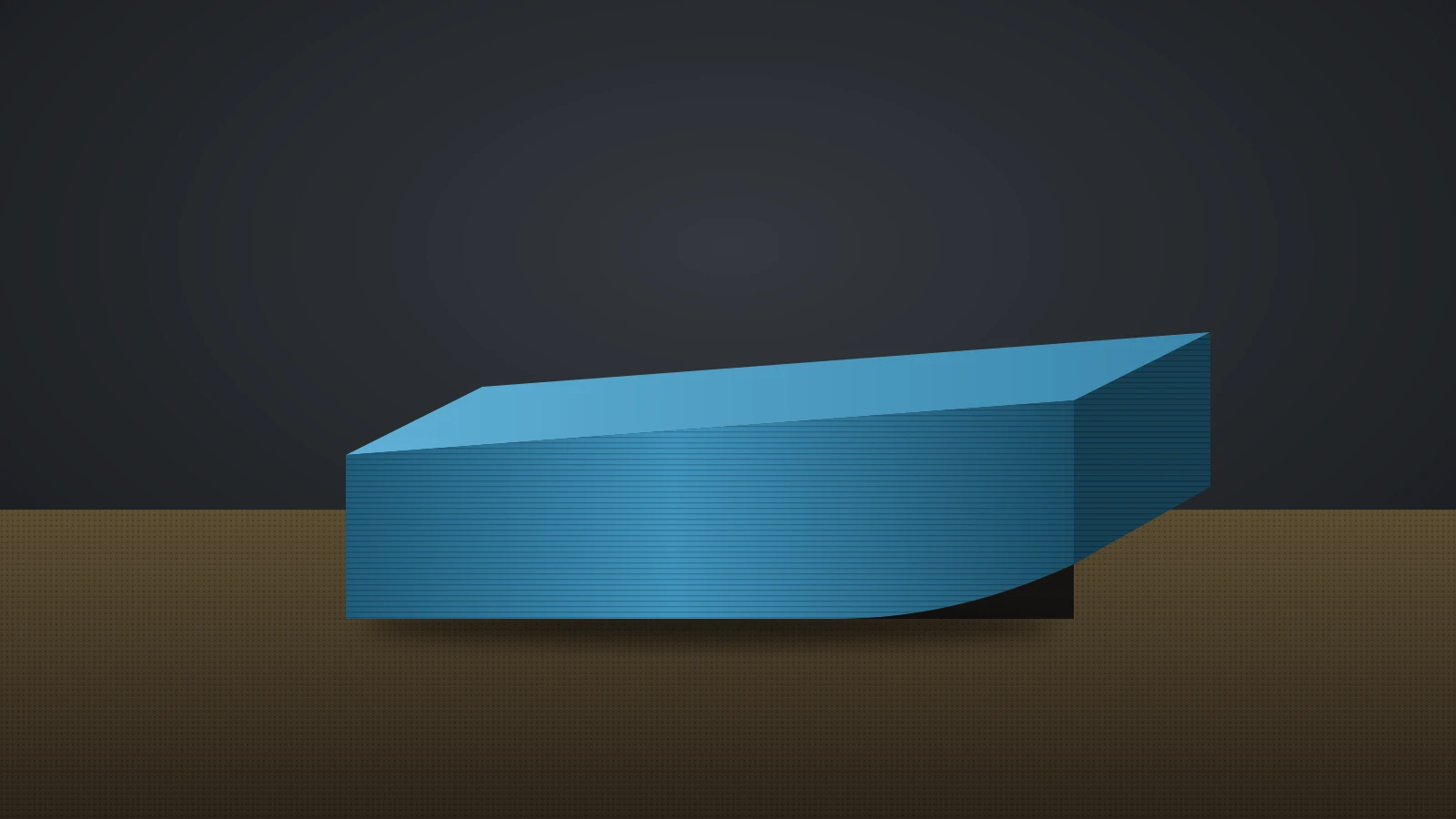


A 3D print layer shift happens when the X or Y axis loses its position mid-print, so every layer above that point is printed offset from the ones below. The most common causes are loose belts and loose motor pulleys; others include speed or acceleration too high for the motors and the nozzle hitting a curled part.
The cause is usually mechanical, so rule out the hardware before changing slicer settings. Our guide on how to calibrate a 3D printer starts with the same belt and frame check for that reason.
The short answer
Check these in order, and print a tall test part after each fix:
- Find the axis. Note which direction the layers moved: left and right, or front to back.
- Belt tension on that axis, using your printer maker’s method.
- Motor pulley set screws: tight, with one screw on the flat of the motor shaft.
- Obstructions: cables, tubes, filament or debris that catch the moving parts.
- Collisions: curled corners, warped overhangs or plastic stuck to the nozzle.
- Speed and acceleration: slow down if shifts appear only on fast profiles.
- Motors and drivers: overheating or too little current; contact the maker if the hardware is at fault.
What does a layer shift look like?
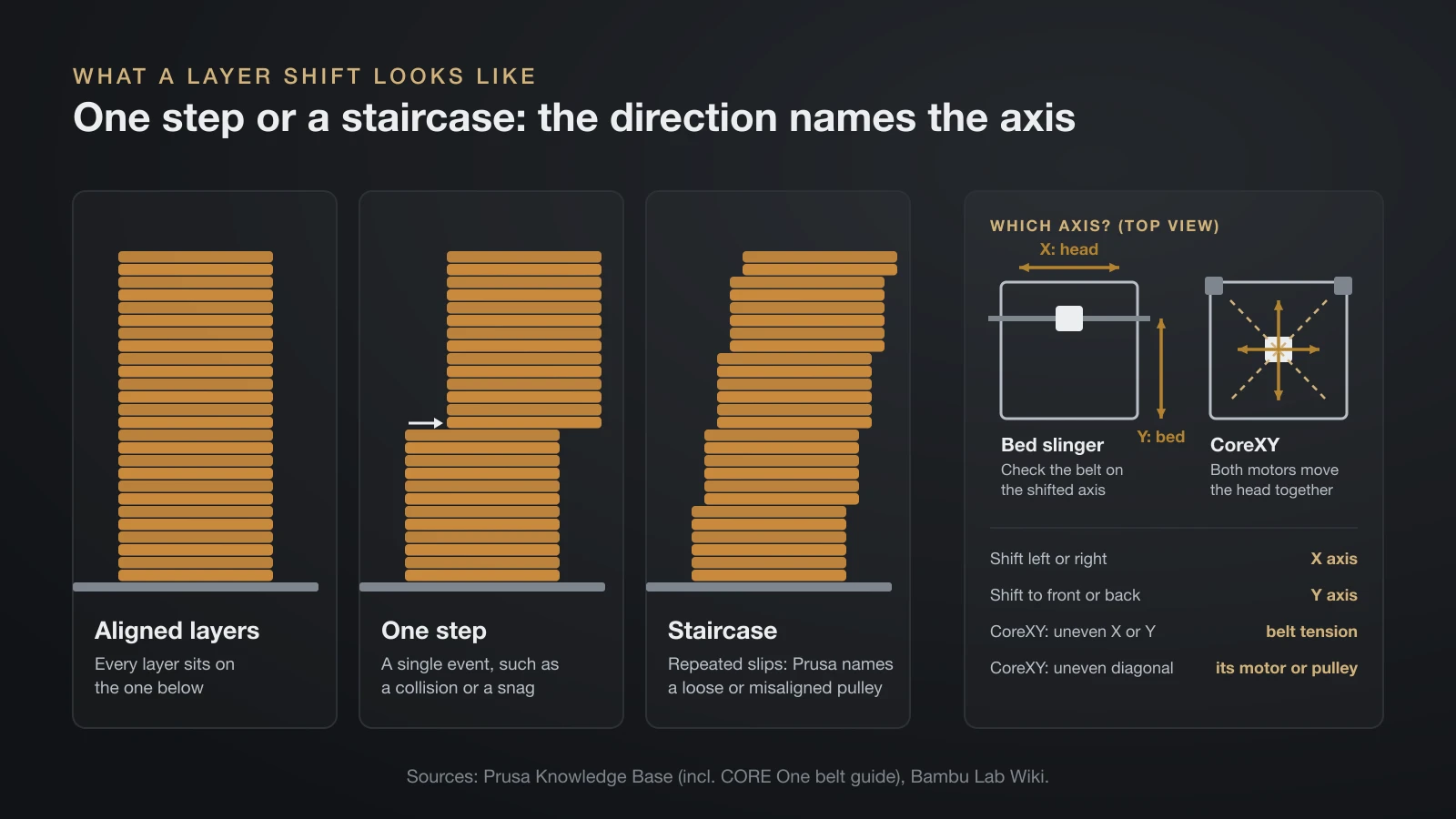
A layer shift looks like a staircase step in the side of a print: up to a certain height the layers line up, then the rest of the part continues offset in one direction. Prusa defines it as abnormal movement in X and/or Y that misaligns the extruder, and Bambu Lab adds that the result can be an incomplete structure and an uneven surface.
The direction tells you which axis to check. A shift to the left or right is the X axis, and a shift toward the front or back is the Y axis. Machine layout changes what that means:
- Bed slinger (the bed moves front to back, as on the Bambu Lab A1): the X belt moves the print head and the Y belt moves the bed, so check the belt on the shifted axis.
- CoreXY (both motors move the head together): Prusa explains for its CORE One that uneven X or Y movement points to belt tension, while uneven diagonal movement points to the motor or pulley that drives that diagonal.
One large step usually means a single event, such as a collision or a snag. Several steps in the same direction, the staircase pattern, point to something that slips again and again; Prusa names a loose or misaligned pulley as the usual cause.
What causes layer shift in 3D printing?
Layer shift in 3D printing happens when a stepper motor cannot move its axis as far as the firmware commanded, so the axis loses steps and the printer carries on from the wrong position. Prusa says layer shifts are most often caused by wrong belt tension or pulleys that are not secure.
| Cause | Typical sign | What to check |
|---|---|---|
| Loose or worn belt | Shifts on one axis, play when you move the head | Tension by the maker’s method; fraying, missing teeth |
| Loose motor pulley | Repeated staircase shifts | Both set screws, one on the shaft’s flat |
| Speed or acceleration too high | Shifts only on fast profiles or sudden speed changes | Print and travel speed, speed mode |
| Nozzle collision | Shift right after a curled corner or overhang | Warping, plastic stuck to the nozzle |
| Obstruction or binding | Shift near one end of the axis | Cables, tubes, purge waste, dirty rods |
| Overheating motor or driver | Shifts late in long prints | Driver cooling, motor temperature |
Belts and pulleys
Creality says a loose belt can skip a tooth on the motor pulley, while an over-tightened one causes notchy movement and premature motor wear. Prusa’s MK-series guide adds the pulley: both grub screws tight, one on the flat of the motor shaft, and the pulley aligned so the belt runs straight.
Speed and acceleration
Moves that are too fast or too abrupt can exceed what the motors deliver. OrcaSlicer warns that too high a travel speed can cause missed steps, and Bambu Lab says switching a running print from Normal to Ludicrous speed can cause a shift, especially when the carbon rods have extra resistance.
Collisions with the print
The nozzle can hit the part when something sticks up into its path. Bambu Lab names two cases: a warped section the nozzle strikes, causing step loss or moving the model, and sticky filaments such as PETG that cling to the nozzle and drag it into the part. Prusa adds that overhangs can curl upward into the nozzle’s path, and that a very low infill percentage can cause the same crash.
Obstructions and binding
Anything that physically slows an axis can cost steps. Prusa lists filament wrapped around the belt near the Y pulley, cable bundles hitting the frame and scratched rods; Bambu Lab adds purge waste, damaged cable chains and loose tubes, and Creality adds dirty or dry rods and bearings.
How to fix a 3D print layer shift, step by step
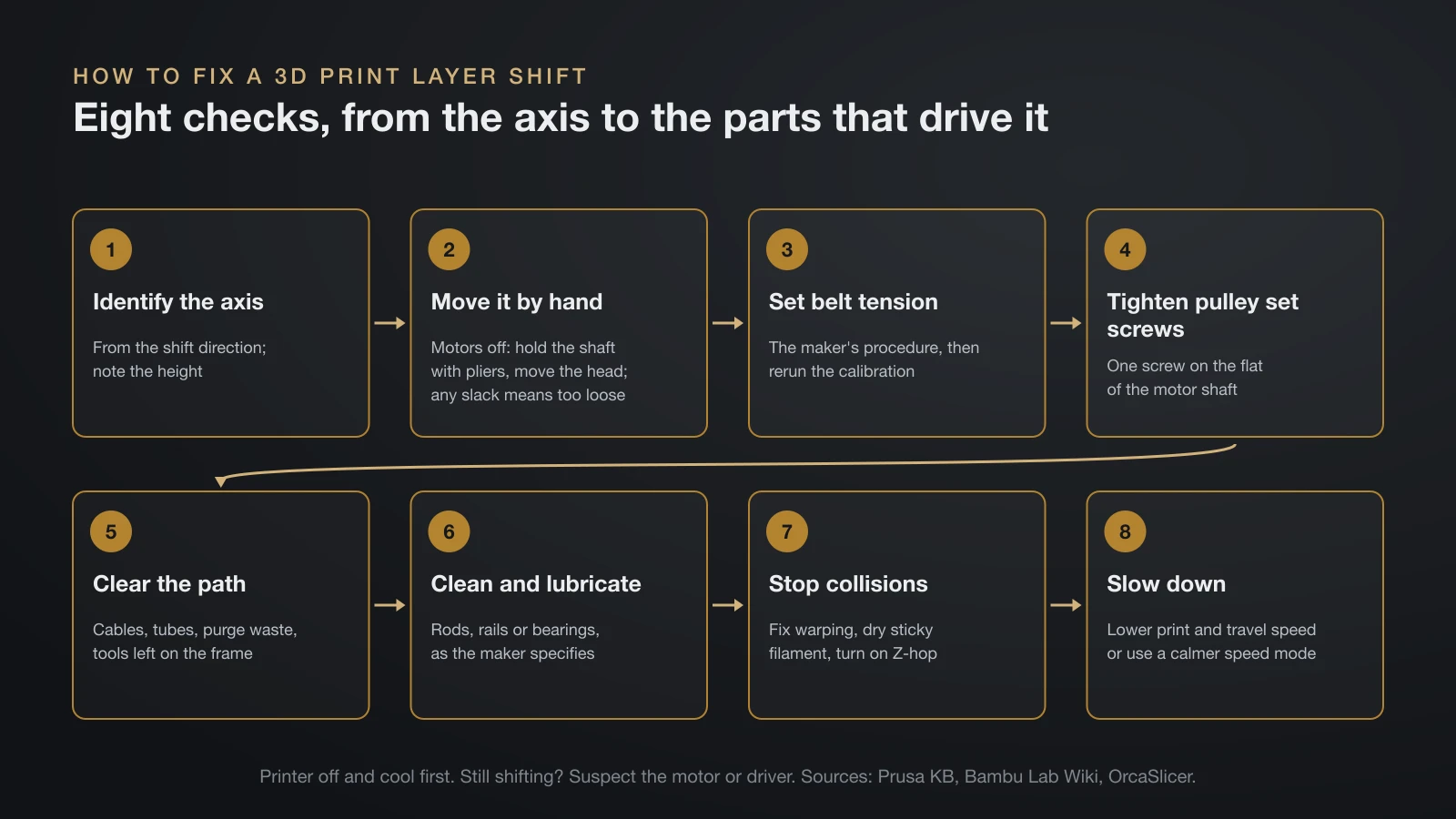
The way to fix a 3D print layer shift is to work from the axis that moved toward the parts that drive it, cheapest checks first. Turn the printer off and let it cool before touching belts, pulleys or the hotend.
- Identify the axis from the direction of the shift, and note the height where it happened.
- Move the axis by hand with the motors off. Prusa suggests holding the X motor shaft still with pliers and moving the print head: any slack or movement means the belt or pulley is too loose.
- Set the belt tension with your printer maker’s procedure, then rerun the printer’s calibration if it has one.
- Tighten the pulley set screws on the affected motor, one on the flat of the shaft.
- Clear the path. Run each axis through its full travel and look for snags: cables, filament tubes, purge waste, tools left on the frame.
- Clean and lubricate the rods, rails or bearings exactly as your maker specifies; Bambu Lab recommends cleaning the carbon rods on its X1 and P1 series.
- Stop collisions. Fix warping, dry sticky filament and turn on Z-hop.
- Slow down. Lower print and travel speed, or use a calmer speed mode, then test again.
If the shift persists after all eight steps, suspect the motor or driver.
Belt tension: how each maker checks it
Belt tension has no universal number, so use the method your printer maker publishes: some printers set it with a spring and some measure it for you. These are the official procedures:
| Printer | Maker’s method |
|---|---|
| Bambu Lab X1 and P1 series (CoreXY) | Power off, loosen the four tensioner screws without removing them, move the head back and forth, park it at the rear and retighten; a spring sets the tension. Recalibrate after |
| Bambu Lab A1 (bed slinger) | The printer prompts you after a frequency sweep; loosen the tension screw one turn, move the axis three times, retighten, run Vibration Compensation |
| Prusa MK3/S/+ | LCD Menu, Support, Belt Status: about 250 on X and 275 on Y, within ±15; loosen the belt near 240 or below, tighten it near 290 or above |
| Other Prusa MK models and MINI | Pluck the belt: it should sound like a low bass note; Prusa also offers an online belt tuner |
| Prusa CORE One (CoreXY) | Test X, Y and both diagonals; adjust tension without losing the CoreXY alignment |
| Creality Ender-3 S1 and V3 | Tensioner knobs, clockwise tightens; adjust with the printer off, then check by plucking and by moving the axis by hand |
Bambu Lab explains why recalibration follows: the belt and gantry act as a spring and mass, so a loose belt lowers the natural frequency the printer uses for vibration compensation. Our input shaping guide explains what that calibration does.
Creality’s rule of thumb sums up the target: firm enough to pluck, but flexible enough to pinch. A belt that is frayed, cracked or missing teeth needs replacing, not more tension.
Slicer settings that prevent nozzle collisions
Slicer settings prevent nozzle collisions by lifting the nozzle over finished areas and by keeping printed plastic flat. Z-hop is the main one: OrcaSlicer describes it as lifting the nozzle slightly during travel moves to avoid collisions with the printed object, most useful for tall, thin features and plates with several parts.
- Z-hop: turn it on for tall, thin or multi-part prints. Prusa notes that a lower lift reduces stringing, so keep it small; our guide to 3D print stringing covers that trade-off.
- Infill pattern: Bambu Lab notes that patterns that cross themselves within a layer, such as grid and triangles, make the nozzle scrape the infill at each crossing. If that knocks parts loose, slow the sparse infill or use a pattern without crossings, such as gyroid.
- Cooling and overhangs: for overhangs that curl, Prusa suggests more part cooling or cutting the model into pieces.
- Sticky filament: for PETG that clings to the nozzle, Bambu Lab suggests drying the filament or adding a prime tower.
Bambu Lab lists warping among the collision causes, so curing 3D print warping can cure the layer shift too. Our guide to 3D printing slicer settings shows where these options sit.
How to prevent layer shift in 3D printing
You prevent layer shift in 3D printing with routine maintenance and settings the motors can handle. A few habits from the makers’ guides cover most cases:
- Check belts and pulleys on a schedule. Prusa’s MK4 maintenance schedule includes rods, pulleys and belts every 200 hours of printing.
- Use normal power mode on Prusa printers. Prusa recommends normal mode over stealth mode for layer shift problems, and crash detection on the MK series works only in normal mode.
- Turn on step-loss recovery on Bambu Lab printers: Auto-recovery from step loss is in Print Options on the printer screen, or in Bambu Studio for the P1 series.
- Don’t jump to the fastest speed mode mid-print; slow down for large or tall parts.
Layer shift vs ghosting vs layer lines
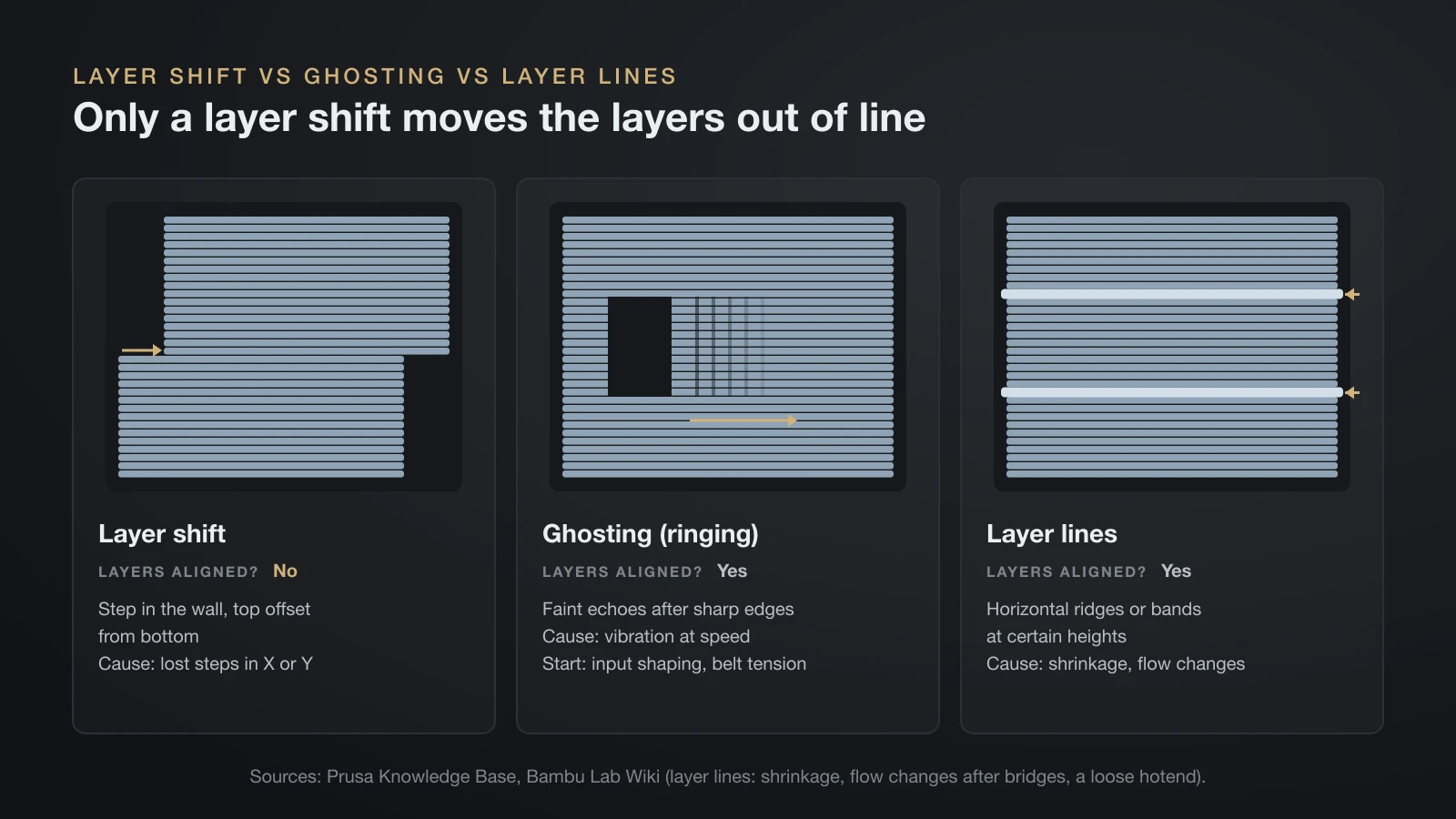
A layer shift moves every layer above a point sideways, while ghosting and layer lines are surface marks on walls that stay aligned.
| Defect | What you see | Layers aligned? | Usual cause | Where to start |
|---|---|---|---|---|
| Layer shift | Step in the wall, top offset from bottom | No | Lost steps in X or Y | This guide |
| Ghosting (ringing) | Faint echoes after sharp edges | Yes | Vibration at speed | Input shaping, belt tension |
| Layer lines | Horizontal ridges or bands at certain heights | Yes | Shrinkage where a large surface meets thin walls, flow changes after bridges, a loose hotend | Bambu Lab’s layer lines guide |
When a layer shift is a hardware fault
A layer shift becomes a hardware question when belts, pulleys, speed and collisions are ruled out and the axis still loses steps. The motor and its driver are the remaining suspects, and both are sensitive to heat.
Klipper’s documentation explains the trade-off: higher driver current gives more torque and positional accuracy, but a motor that gets too hot loses both, and an overheated driver disables itself. Its fixes are lower current or more cooling, and Creality likewise asks for good airflow around the control board.
Don’t change motor current unless your firmware’s documentation shows how and the printer is yours to modify. Otherwise contact the maker’s support; Bambu Lab asks for a picture or video of the problem with each ticket. On a Creality Ender-3 or a similar open printer, check that the board’s cooling is working first.
The bottom line
A 3D print layer shift is an axis losing steps, and the direction of the step tells you which axis to check. Start with belt tension and the pulley set screws on that axis, then clear obstructions, stop collisions with Z-hop and flatter prints, and slow down if shifts follow speed. If none of that helps, suspect the motor or driver and contact the maker.
Sources
- Prusa Knowledge Base: Layer shifting, Stringing and oozing and Regular printer maintenance (MK4/S, MK3.9/S) (causes, pulleys, pliers test, Belt Status 250 and 275 ±15 with 240 and 290 limits, bass-note test, normal mode, overhangs, Lift Z, 200-hour checks)
- Bambu Lab Wiki: Layer shift, X1/P1 belt tensioning, A1 belt tensioning, Common print quality problems and Layer lines (causes, step-loss recovery, tensioning steps, infill crossings, layer lines)
- Creality: 3D printer belt tension and 3D print layer shift (tensioner knobs, tests, over-tightening, driver heat)
- OrcaSlicer Wiki: Z-hop and Travel speed (collisions, missed steps)
- Klipper documentation: TMC drivers (current, torque and overheating)