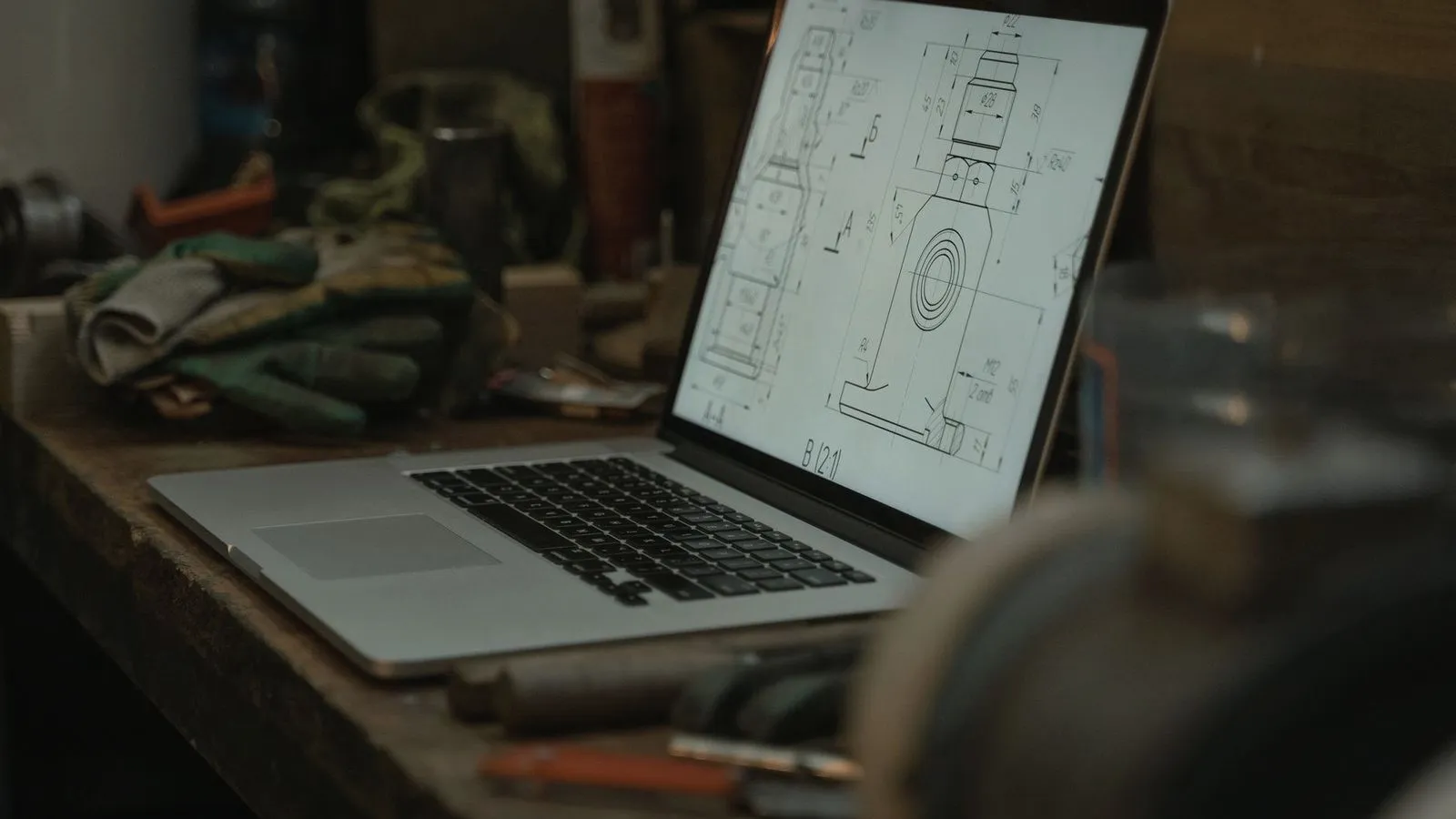
The best free 3D design software for 3D printing depends on what you make. Tinkercad suits beginners and simple parts, FreeCAD, Autodesk Fusion (personal use) and Onshape Free handle precise mechanical parts, Blender suits sculpted figures, and OpenSCAD suits code-driven models. All of them export an STL file your slicer can print.
“Free” means different things for each one: some are open source with no strings, others limit commercial use, project counts or privacy. The license terms below come from each vendor’s own page as of October 2026.
Choosing the program is the first step; the modeling workflow itself (measure, sketch, extrude, test print) is the same in all of them and lives in our guide on how to make 3D models for printing.
The short answer
| Software | Type | Runs on | Free terms (October 2026) | Learning curve | Best for |
|---|---|---|---|---|---|
| Tinkercad | Block (direct) | Web browser | Free | Low | First designs, kids, simple parts |
| FreeCAD | Parametric | Windows, macOS, Linux | Open source (LGPL-2.1), no limits | High | Mechanical parts with no license strings |
| Autodesk Fusion (personal use) | Parametric | Windows, macOS (plus a browser version) | Non-commercial, under $1,000 a year revenue, 3-year term | Medium | Mechanical parts with a polished interface |
| Onshape Free | Parametric | Browser, iPad, iPhone, Android | Non-commercial, documents public | Medium | Parametric CAD on any device |
| Blender | Mesh and sculpt | Windows, macOS, Linux | Open source (GPL), any use | High | Figures, sculptures, organic shapes |
| SketchUp Free | Direct (push/pull) | Web browser | Free web plan, non-commercial, 10 GB cloud storage | Low to medium | Furniture, buildings, boxy shapes |
| OpenSCAD | Code (CSG) | Windows, macOS, Linux | Open source (GPLv2) | Medium (needs coding) | Customizable, parametric models in code |
| Shapr3D Basic | Direct, solid modeling | macOS, iPadOS, Windows, visionOS | 2 projects, low-resolution STL and 3MF export | Low to medium | Sketching solids on an iPad |
Learning-curve ratings are editorial judgments based on how each program builds a model, not measured data.
Which type of free 3D design software suits 3D printing?
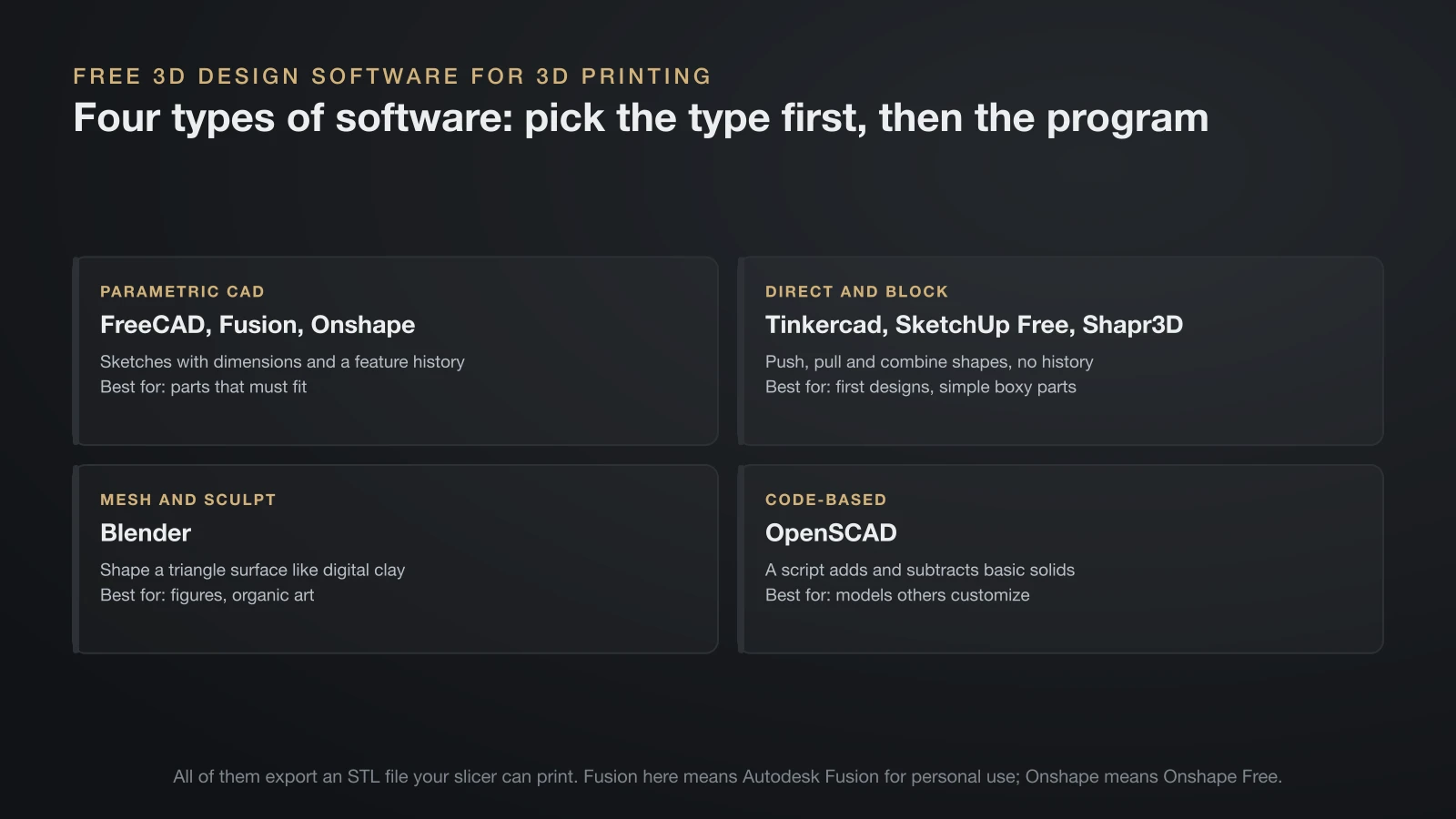
Free 3D design software for 3D printing falls into four types, and the type matters more than the brand. Pick the type that matches your parts, then the program within it.
Parametric CAD: FreeCAD, Fusion, Onshape
Parametric programs build a solid from 2D sketches with dimensions and constraints, then record every step in a history. FreeCAD’s documentation describes this feature-based method: a Pad adds an extruded sketch to the solid, a Pocket subtracts one, and each feature builds on the previous ones. Change one number and the whole part updates, which is exactly what you need when a test print comes out slightly too tight.
Direct and block modeling: Tinkercad, SketchUp Free, Shapr3D
Direct modelers let you push, pull and combine shapes without a dimension history. Tinkercad works with ready-made blocks you stack and subtract; SketchUp pushes and pulls faces. They are fast for simple parts, but changing an early decision often means redrawing.
Mesh and sculpting: Blender
Mesh tools shape a surface made of triangles, like digital clay. Blender excels at characters, organic forms and art pieces, but it has no built-in sense of “this hole is 5 mm” the way CAD does. It is the right tool when the shape matters more than the dimensions.
Code-based: OpenSCAD
OpenSCAD reads a script that describes the object instead of letting you draw it. Its documentation names two techniques: constructive solid geometry (CSG, adding and subtracting basic solids) and extruding 2D outlines. Code makes it easy to publish a model where anyone changes a variable, such as box width, and gets a new STL.
What “free” means for each program
Free license terms range from fully open source to non-commercial plans with public files, so read them before you design something you might sell. The table above sums them up; these are the details that matter for makers.
Open source: FreeCAD, Blender, OpenSCAD
FreeCAD’s site promises “no licensing fees, no vendor lock-in,” and its source code is under the LGPL-2.1 license. Blender’s license page says you may use it for any purpose and that what you create with it is your sole property, which includes commercial work. OpenSCAD is free software under the GNU General Public License version 2.
Free plans with conditions: Fusion, Onshape, Shapr3D
- Autodesk Fusion for personal use: free for 3 years for home-based, non-commercial projects. Users must generate less than $1,000 a year, may not use it in their main job, a company or commercial training, and get limited CAM, drawings and import/export file types.
- Onshape Free: meant for non-commercial designs that are open-source and public online. Anyone can see your documents, so keep client or private work out of it.
- Shapr3D Basic: up to 2 projects, and exports are limited to low-resolution STL and 3MF.
Free web apps: Tinkercad and SketchUp Free
Tinkercad describes itself as “a free, easy-to-use app for 3D design, electronics, and coding.” Its service terms add one point: anything you publish to the gallery can be copied and remixed by other users. SketchUp Free runs in the browser, exports STL and includes 10 GB of Trimble Connect cloud storage. Its terms of service limit it to non-commercial use, so it is not an option for designs you plan to sell.
Choosing free 3D design software for your first prints
The quickest way to choose free 3D design software for your first prints is to match it to the part you want to make next. This table maps common goals to a starting point.
| You want to make | Start with | Why |
|---|---|---|
| A name tag, simple box or first design | Tinkercad | No install, works in minutes |
| A replacement part or bracket that must fit | FreeCAD, Fusion or Onshape | Dimensions stay editable after a test print |
| Parts you may sell later | FreeCAD | Open source, no revenue limit |
| Designs on a Chromebook, iPad or phone | Onshape Free | Runs in the browser and mobile apps |
| A figure, creature or sculpture | Blender | Sculpting tools for organic shapes |
| A box generator others can customize | OpenSCAD | One variable changes the whole model |
| A photo turned into a backlit panel | A lithophane generator | No modeling needed |
For that last row, a free generator does the work; see our guide to the lithophane 3D print for the tools and settings.
A simple beginner path
- Learn the basics in Tinkercad: place, align, group and subtract shapes.
- Print a few of your designs to learn how the printer handles walls and holes; our walkthrough on how to use a 3D printer covers the first print.
- Move to one parametric program and stay with it. Sketches, constraints, extrudes and fillets work the same way in FreeCAD, Fusion and Onshape.
- Add Blender later only if you start making figures or art.
How to use FreeCAD for 3D printing
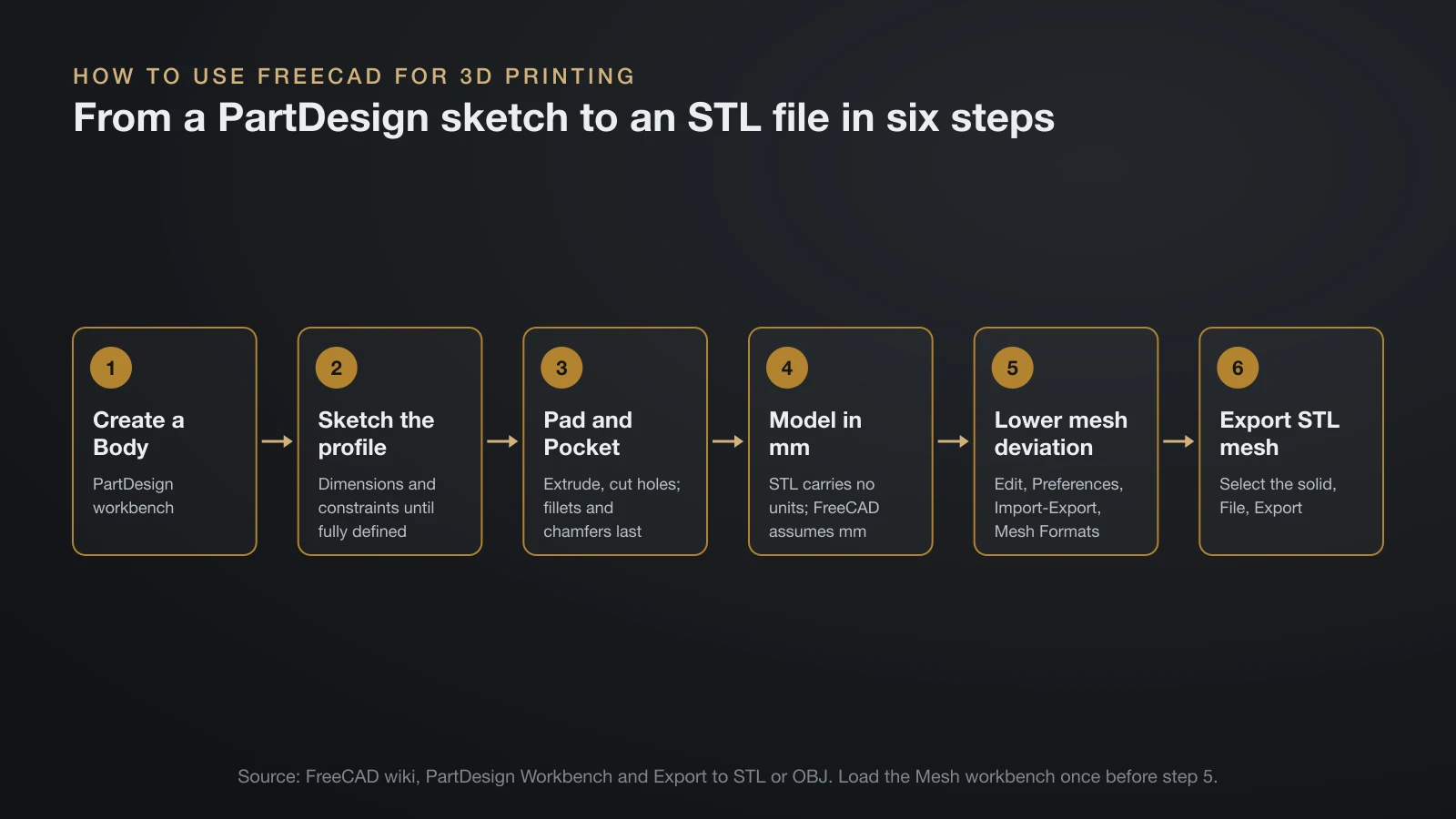
FreeCAD turns a sketch into a printable solid in its PartDesign workbench, then exports a mesh through File, Export. The steps below are based on the FreeCAD wiki.
- Create a Body. Open the PartDesign workbench and create a Body, the container that holds all features of one part.
- Sketch the profile. Make a sketch on a base plane and add dimensions and constraints until it is fully defined.
- Pad and Pocket. Use Pad to extrude the sketch into a solid, and Pocket to cut holes or recesses from further sketches. Fillets and chamfers are easiest to add last.
- Check the units. FreeCAD’s export guide notes that STL and OBJ files carry no units and that FreeCAD assumes millimeters on export, so model in mm.
- Set the mesh resolution. With default settings, curves come out jagged. Load the Mesh workbench once, then go to Edit, Preferences, Import-Export, Mesh Formats and lower the maximum mesh deviation for smoother curves.
- Export. Select the finished solid in the tree view, choose File, Export, set the type to STL mesh and save.
The Mesh workbench offers a second route: Meshes, Create Mesh from shape, then right-click the mesh and choose Export mesh. It lets you inspect the mesh in FreeCAD before you save it.
Exporting STL or 3MF files for your slicer
Every program compared here can export a mesh your slicer reads, usually STL, and the export settings decide how smooth curves print. Three checks prevent most problems.
- Units: Onshape lets you choose the units written into an STL. A part exported in inches arrives far too small in a slicer that assumes millimeters.
- Resolution: coarse export settings turn circles into visible polygons. Raise the resolution (Onshape’s Fine preset, FreeCAD’s lower mesh deviation) for round parts, and remember that Shapr3D Basic exports only low-resolution files.
- Keep the source file: an STL is a frozen mesh. Keep the native CAD file or a STEP export as your master copy, because changing a mesh later is much harder.
To turn the exported file into printer instructions, follow our guide on STL to G-code. If you only need a small change to someone else’s model, our guide to editing STL files shows which edits a slicer can handle without any CAD program.
Design checks for 3D printing in any CAD program
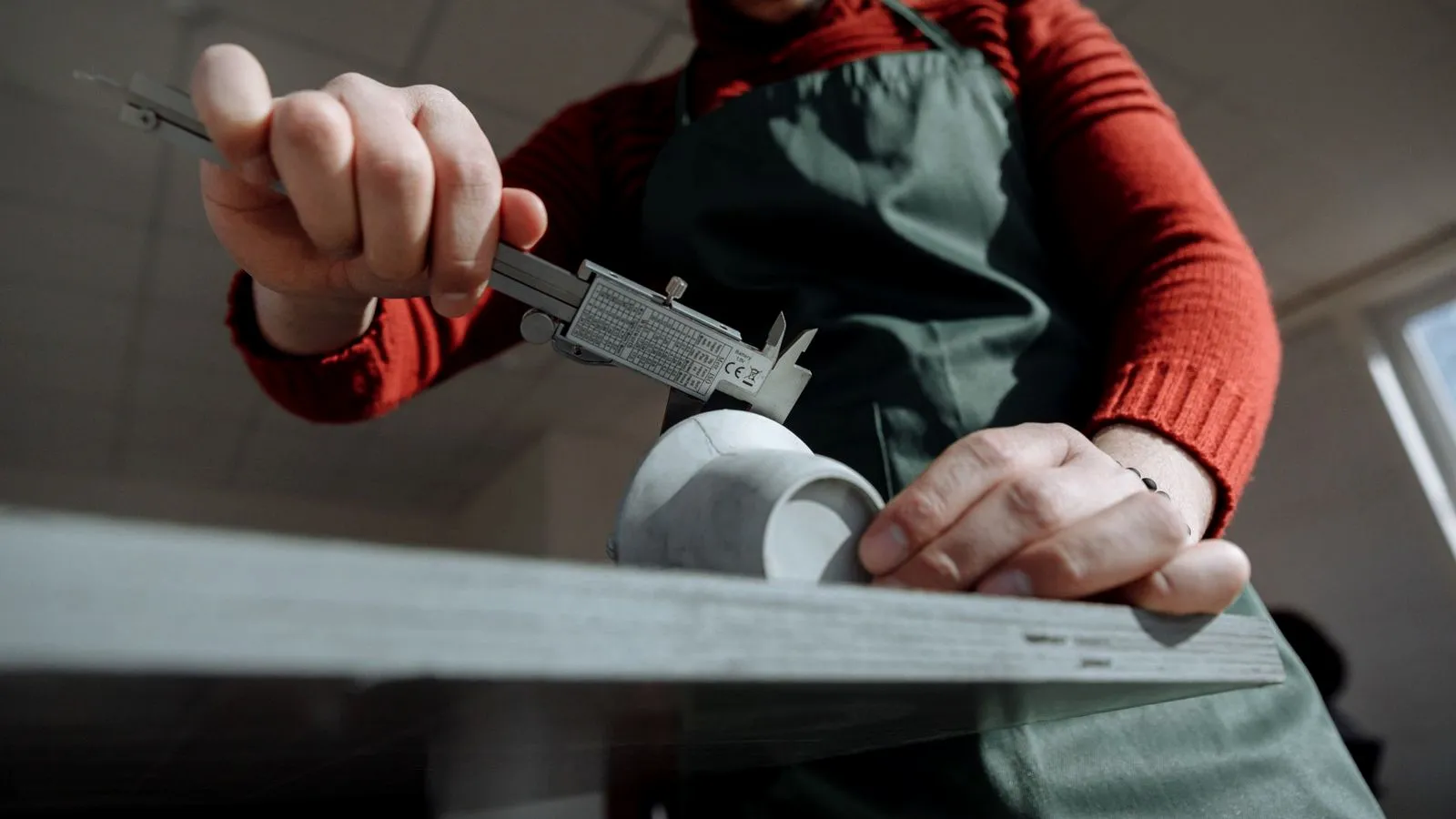
Design checks for 3D printing are the same whichever program you use, because the printer, not the software, sets the limits. Build these into the model before you export it.
- Overhangs: angle steep undersides or use chamfers instead of flat ceilings so the part prints without supports.
- Clearances: parts that slide, snap or screw together need a deliberate gap, and holes tend to print slightly small. Our guide to 3D printing tolerances lists starting clearances by fit type.
- Moving parts: hinges, snap fits and print-in-place joints have their own design rules, covered in our guide to 3D printed joints.
- Walls: design wall thicknesses as whole multiples of your nozzle’s line width so the slicer fills them cleanly.
- Parameters: in parametric programs, name the key dimensions (wall, clearance, hole size) so a failed fit is a one-number change.
The bottom line
Free 3D design software for 3D printing covers every need: Tinkercad to start, FreeCAD, Fusion or Onshape for precise parts, Blender for sculpted shapes and OpenSCAD for models driven by code. If you might sell your designs, choose an open-source program such as FreeCAD, because Fusion’s personal-use license, Onshape Free and SketchUp Free are non-commercial. Whatever you pick, export at a fine resolution in millimeters and keep the source file.
Sources
- Autodesk: Autodesk Fusion for personal use (non-commercial terms, $1,000 revenue limit, 3-year term, limited features; page as captured October 9, 2026), Fusion system requirements (Windows, macOS, browser), Tinkercad, Tinkercad export help and Special Service Terms for Tinkercad (free app, gallery license)
- Onshape: Free plan (non-commercial, public documents, supported devices) and Exporting files (STL units and resolution)
- FreeCAD: freecad.org (free, open source, platforms), PartDesign Workbench, Export to STL or OBJ and the FreeCAD GitHub repository (LGPL-2.1 license)
- Open-source modelers: Blender License and Download pages (GPL, any use, platforms); OpenSCAD About (script-based CSG and extrusion, GPLv2, STL export)
- Commercial free tiers: Trimble SketchUp Free (browser, STL export, 10 GB storage) and Shapr3D pricing (Basic plan: 2 projects, low-resolution STL and 3MF, platforms), and SketchUp Free terms of service (non-commercial purposes only)