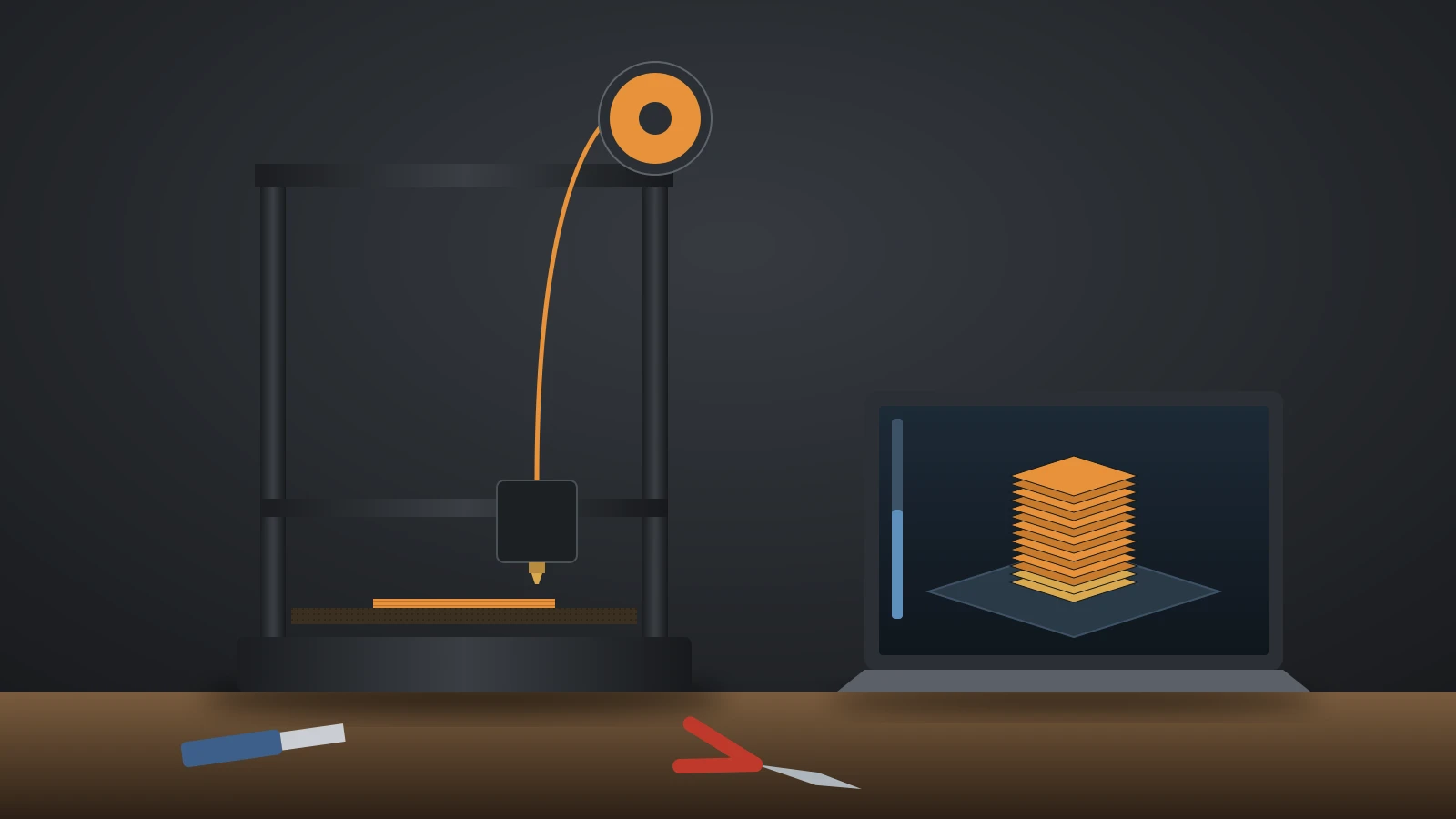
How to use a 3D printer comes down to one loop: set the printer up and calibrate it, load filament, get a model file, slice it into G-code, start the print and watch the first layer, then remove the part once the bed cools. Current printers automate leveling, and Prusa says a CORE One+ prints its first part 10 minutes after unpacking.
Each step below follows the makers’ own setup guides from Bambu Lab, Prusa and Creality. If your bed has manual leveling knobs, our guide on how to level a 3D printer bed covers that part in detail. The walkthrough assumes a filament (FDM, fused deposition modeling) printer and PLA, the easiest material to start with.
The short answer
| Step | What you do | Time it adds |
|---|---|---|
| 1. Set up | Assemble per the manual, remove transport locks, run the setup wizard | Minutes for assembled printers, hours for kits |
| 2. Load filament | Feed the filament until it flows from the nozzle | A few minutes |
| 3. Get a model | Use a built-in test file or download an STL or 3MF | Minutes |
| 4. Slice | Pick printer, filament and quality profile, then slice | Minutes |
| 5. Print | Start the job and watch the first layer | Set by the slicer estimate |
| 6. Remove | Let the bed cool, flex the plate, clean it | A few minutes |
What do you need for 3D printing?
You need a printer, filament, a slicer, a model file and a handful of tools. Most printers include sample filament and some tools, so check the box before you buy anything.
- Printer: set up as its quick start guide shows.
- Filament: PLA in the diameter your printer lists; our guide to 1.75 mm filament explains why that size covers most consumer machines.
- Slicer: free software from your printer’s maker, such as Bambu Studio, PrusaSlicer or Creality Print, or the open-source OrcaSlicer.
- Model file: an STL or 3MF file, downloaded or designed yourself.
- Tools: a plastic scraper or spatula, flush cutters for supports, isopropyl alcohol and lint-free wipes.
Bambu Lab’s A1 box, for example, holds a textured PEI plate, sample filament, a scraper blade, Allen keys, an unclogging pin, lubricants and a 32 GB microSD card inside the printer.
How to set up a 3D printer
To set up a 3D printer, follow the maker’s unboxing guide in order, because transport locks hold the moving parts in place. Skipping one of them can damage the printer on its first move.
- Place it on a flat, stable surface with room for the bed to travel. Bambu Lab asks you to leave clear space behind the A1, because the heatbed cable needs room as the bed moves.
- Remove the packing. On the A1 that means cutting the zip tie that locks the heatbed, freeing the toolhead and removing any Z-axis stoppers.
- Finish the assembly. The A1 needs 12 screws to join its base and frame. Creality’s Ender-3 V3 SE has you bolt on the gantry frame, screen and spool holder, then plug in the extruder and motor cables.
- Power on and run the wizard. The screen walks you through initialization, self-tests and calibration, including automatic bed leveling on most current printers.
- Fit a clean build plate before calibration starts, as Bambu Lab’s guide specifies.
Printers with manual leveling need the bed trammed at this point. Building a printer from parts takes longer; our guide to 3D printer kits covers what that involves.
How to 3D print something: the full workflow
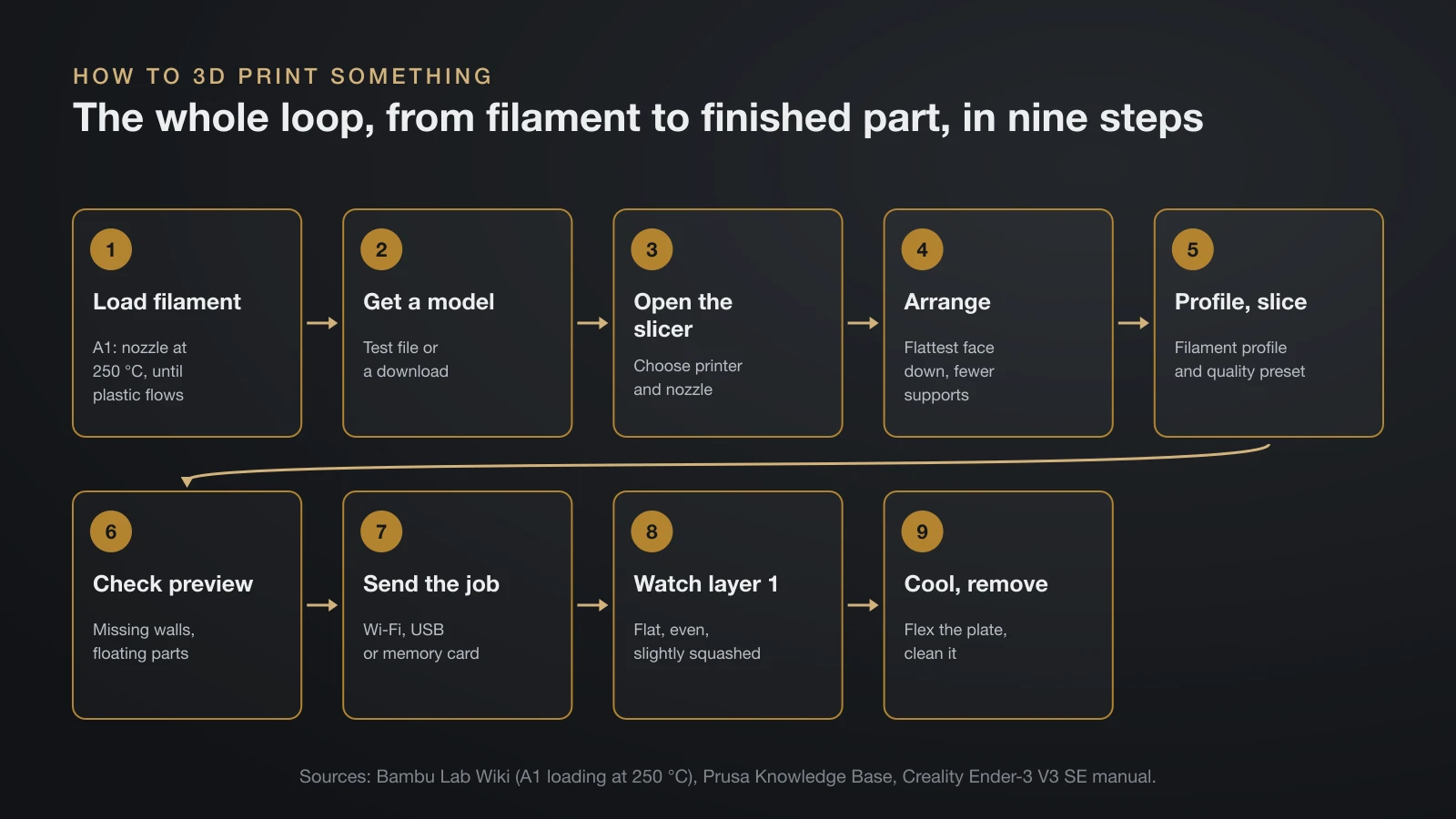
You 3D print something by turning a 3D model into printer instructions and letting the printer build it layer by layer. The numbered steps below are the whole loop, from file to finished part.
- Load the filament. On the A1, push the filament into the toolhead, tap Load, push again once the nozzle reaches 250 °C (482 °F), and confirm when plastic flows from the nozzle.
- Get a model. Start with a test file from the printer’s card, or download one from a model site; our guide to Thingiverse 3D prints explains how to judge a model before printing it.
- Open the slicer and choose your printer and nozzle. PrusaSlicer’s configuration wizard installs printer and filament profiles on the first launch.
- Import and arrange the model. Lay it on its flattest face, so it needs as few supports as possible.
- Pick a filament profile and a quality preset, then slice.
- Check the preview layer by layer for missing walls or floating parts.
- Send the job over Wi-Fi, or save the G-code to the printer’s USB drive or memory card.
- Start the print and watch the first layer.
- Wait for the bed to cool, then remove the part and clean the plate.
Creality’s Ender-3 V3 SE manual adds a practical rule for card printing: save files in the card’s root folder, with names of no more than 20 Latin letters or numbers, and never remove the card mid-print.
Slicing a model: from STL to G-code
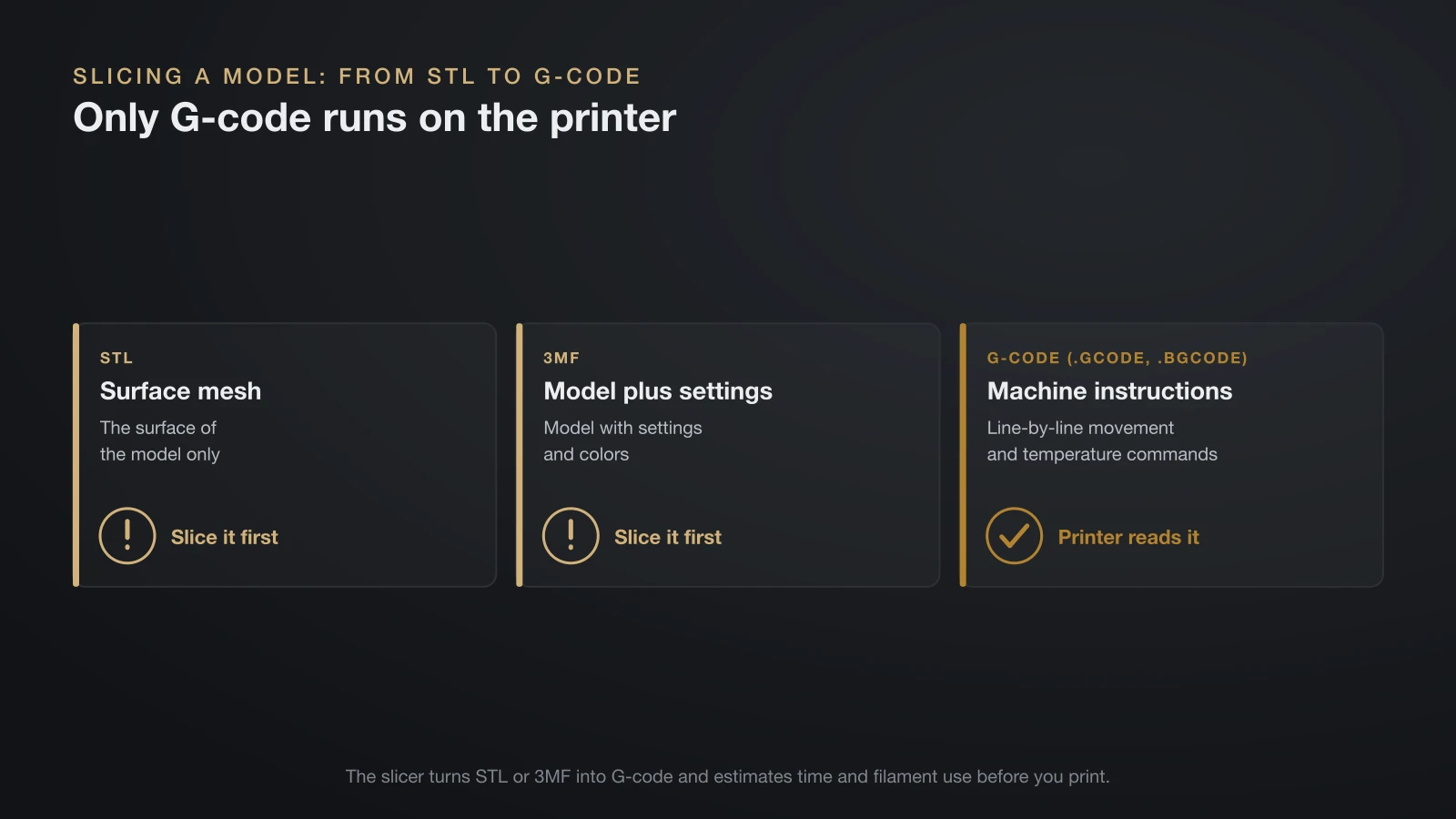
Slicing converts a 3D model into G-code, the line-by-line movement and temperature commands your printer runs. The slicer decides layer height, wall count, infill and supports, and it estimates time and filament use before you print.
For a first print, keep the maker’s default profile for your printer and filament and change nothing else. The defaults are tuned for that machine. When you are ready to adjust things, our guides to OrcaSlicer, converting STL to G-code and 3D printing slicer settings explain each option.
| File | What it is | Can the printer read it? |
|---|---|---|
| STL | Surface mesh of the model | No, slice it first |
| 3MF | Model plus settings and colors | No, slice it first |
| G-code (.gcode, .bgcode) | Sliced machine instructions | Yes |
Watching the first layer
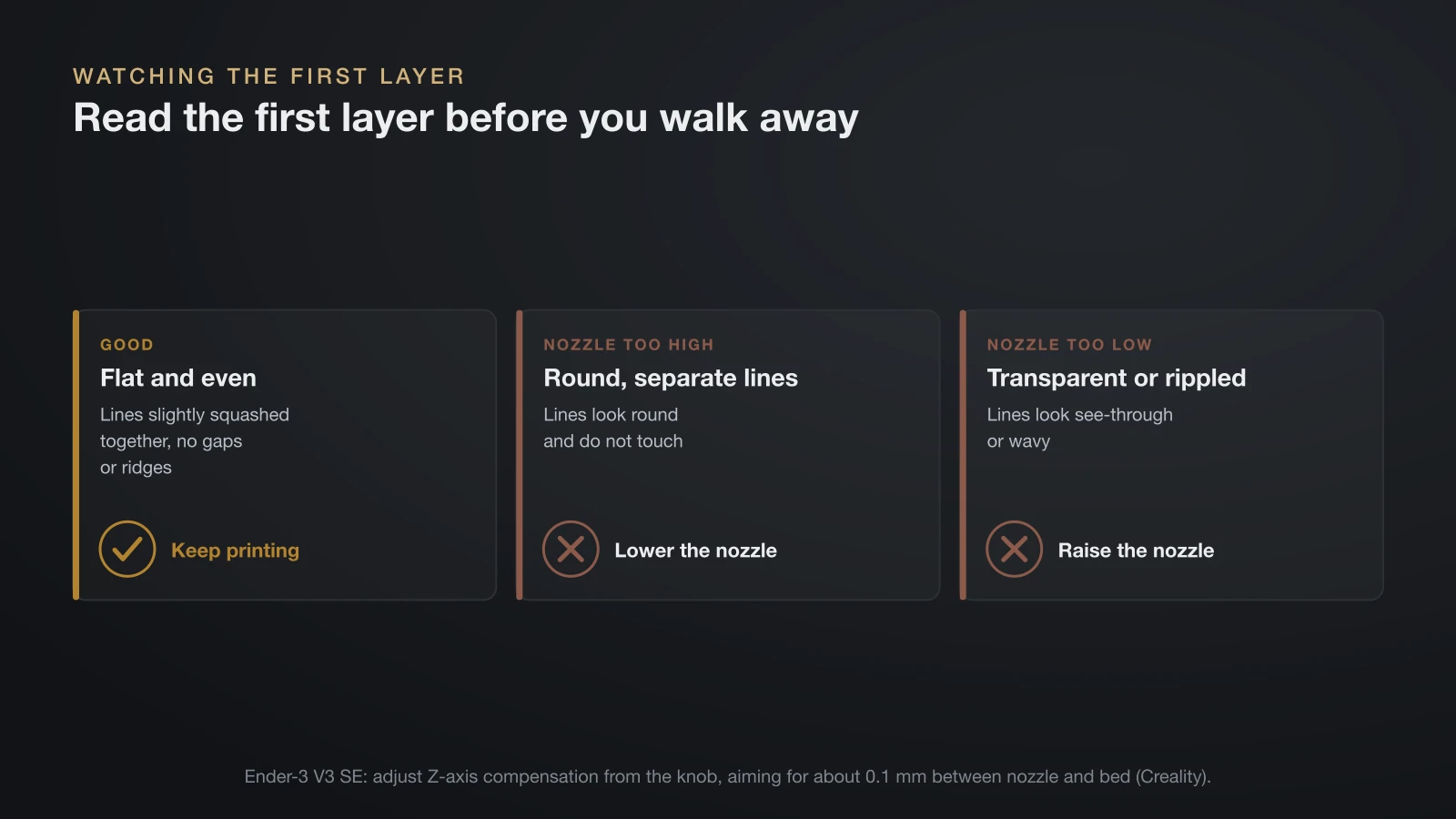
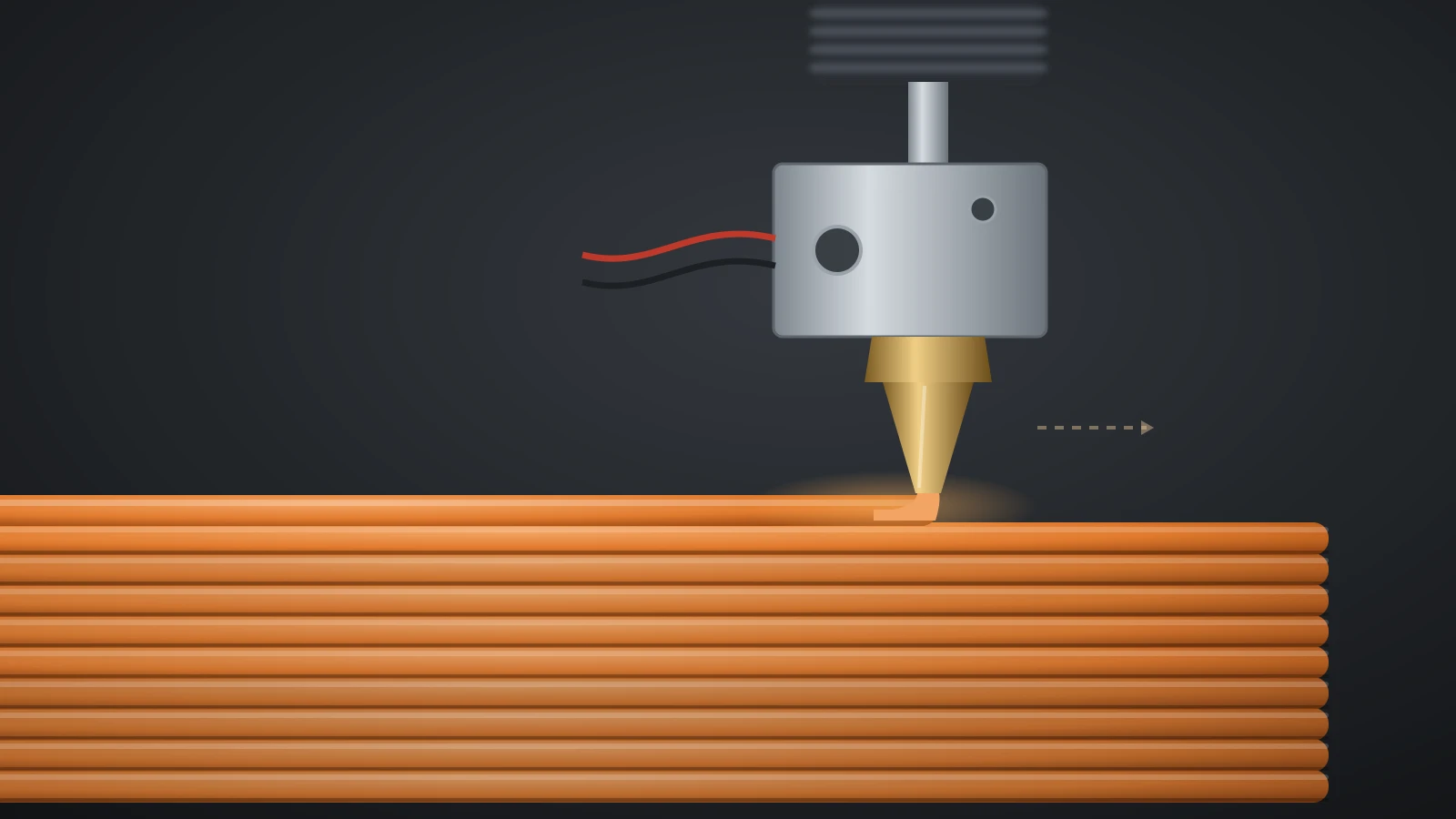
The first layer decides whether a print succeeds, so watch it from start to finish. A good first layer is flat and even, with neighboring lines slightly squashed together and no gaps or ridges between them.
If the lines look round and separate, the nozzle is too high; if they look transparent or rippled, it is too low. On the Ender-3 V3 SE, Creality has you adjust the Z-axis compensation from the knob, aiming for a gap of about 0.1 mm between nozzle and bed. Stop the print early if the line peels up, then fix the cause with our first layer problems guide rather than starting again blind.
Bambu Lab adds one tip for brand-new printers: the heatbed may have sat still for a long time in the box, which raises friction on the first layer. It recommends pushing the bed by hand to its full travel before the first print.
Removing the print and cleaning the bed
Remove a print only after the build plate has cooled to room temperature, then flex the plate to pop the part free. Prusa’s instructions say to bend the steel sheet inwards and outwards and, where needed, slide a spatula under the model.
- Don’t pry on a hot bed: the plastic is still soft, and metal tools scratch the surface.
- Keep the plate clean: oil from fingers reduces adhesion, Bambu Lab notes. Prusa recommends isopropyl alcohol of 90% or stronger for routine wipes.
- Wash it when wiping stops working: Bambu Lab recommends washing its textured PEI plate with warm water and dish soap that contains no oils or moisturizers.
Our guide on how to clean a 3D printer bed covers each surface type, including what never to use on textured PEI.
Post-processing: finishing your first prints
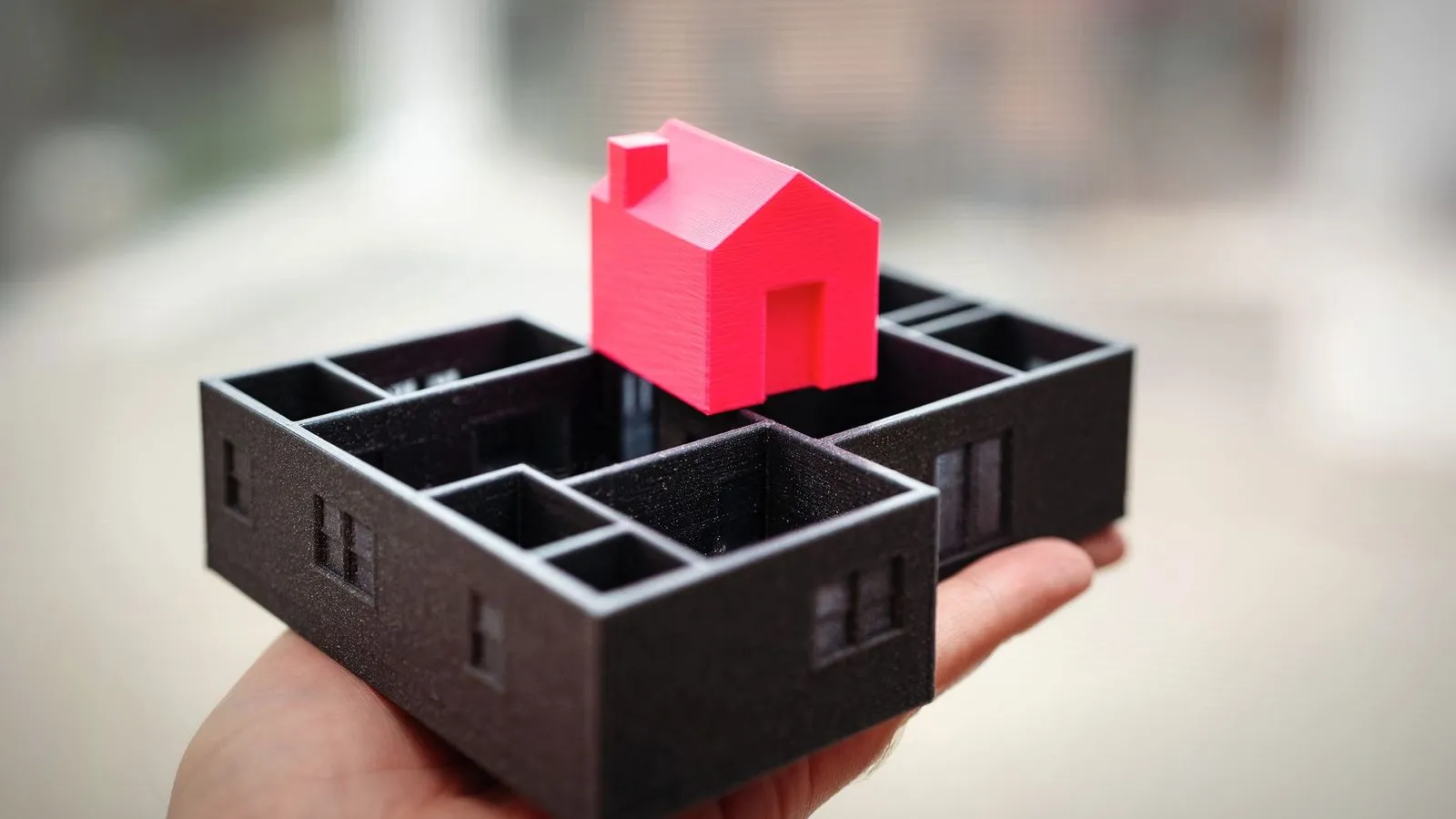
Most first prints need only a little cleanup: snipping off supports, trimming the brim and removing stray strings. Use flush cutters for supports and work away from your hand.
For a smoother look, sand with progressively finer grit and wet the paper to keep dust down. NIOSH recommends eye protection for cutting, grinding and sanding, plus wet wiping or a HEPA vacuum rather than dry sweeping. Primer and paint come later, once you know which parts are worth the effort.
3D printer safety at home
A 3D printer is safe to use at home when you treat it as a hot appliance that releases particles and fumes. The nozzle and bed run hot long after a print ends, so let them cool before you touch either one.
- Ventilation: printers emit ultrafine particles and volatile organic compounds. NIOSH recommends keeping as much distance as possible between printers and people, ideally with filtration or exhaust to the outdoors.
- Fire: Prusa warns not to leave a running printer unattended, and NIOSH lists fire detection and clearance from combustibles among its controls. Keep a smoke alarm in the room.
- Children and pets: keep them away from the moving bed, the hot nozzle and the hot plate.
- Power: unplug the printer before maintenance; NIOSH notes that moving parts can still trap fingers or hair if a printer is opened while powered.
How to start 3D printing your own designs
After your first few downloaded models print well, the next skills are calibration and design. Calibration matters most when you switch to a new filament brand or when parts must fit together; our guide on how to calibrate a 3D printer sets out the tests in the right order.
Designing your own parts starts with choosing a program. Our overview of free CAD software for 3D printing compares beginner tools such as Tinkercad with parametric programs, and how to export STL or 3MF files for slicing.
The bottom line
Using a 3D printer means setting it up by the maker’s guide, loading filament, slicing a model with the default profile and watching the first layer before you walk away. Remove parts only from a cooled plate, keep the surface clean, and give the printer a ventilated spot with a smoke alarm nearby. Everything else, from calibration to your own designs, builds on that loop.
Sources
- Bambu Lab Wiki: Unboxing Guide for A1 Combo (accessories, heatbed lock, 12 base screws, clear space, wizard), A1 First Print with an External Spool (250 °C loading, moving the bed before the first print, built-in files) and Textured PEI Plate Cleaning Guide
- Prusa Knowledge Base: Flexible steel sheets (removing prints), First layer issues (isopropyl alcohol strength) and Configuration Wizard (PrusaSlicer profiles)
- Prusa Research: Prusa CORE One handbook (do not leave the printer unattended) and CORE One+ product page (package contents, USB drive with sample prints)
- Creality Wiki: Ender-3 V3 SE user manual (assembly, card file rules, 0.1 mm nozzle gap)
- NIOSH (CDC): Approaches to Safe 3D Printing, publication 2024-103 (emissions, distance, fire detection, eye protection, electrical safety)