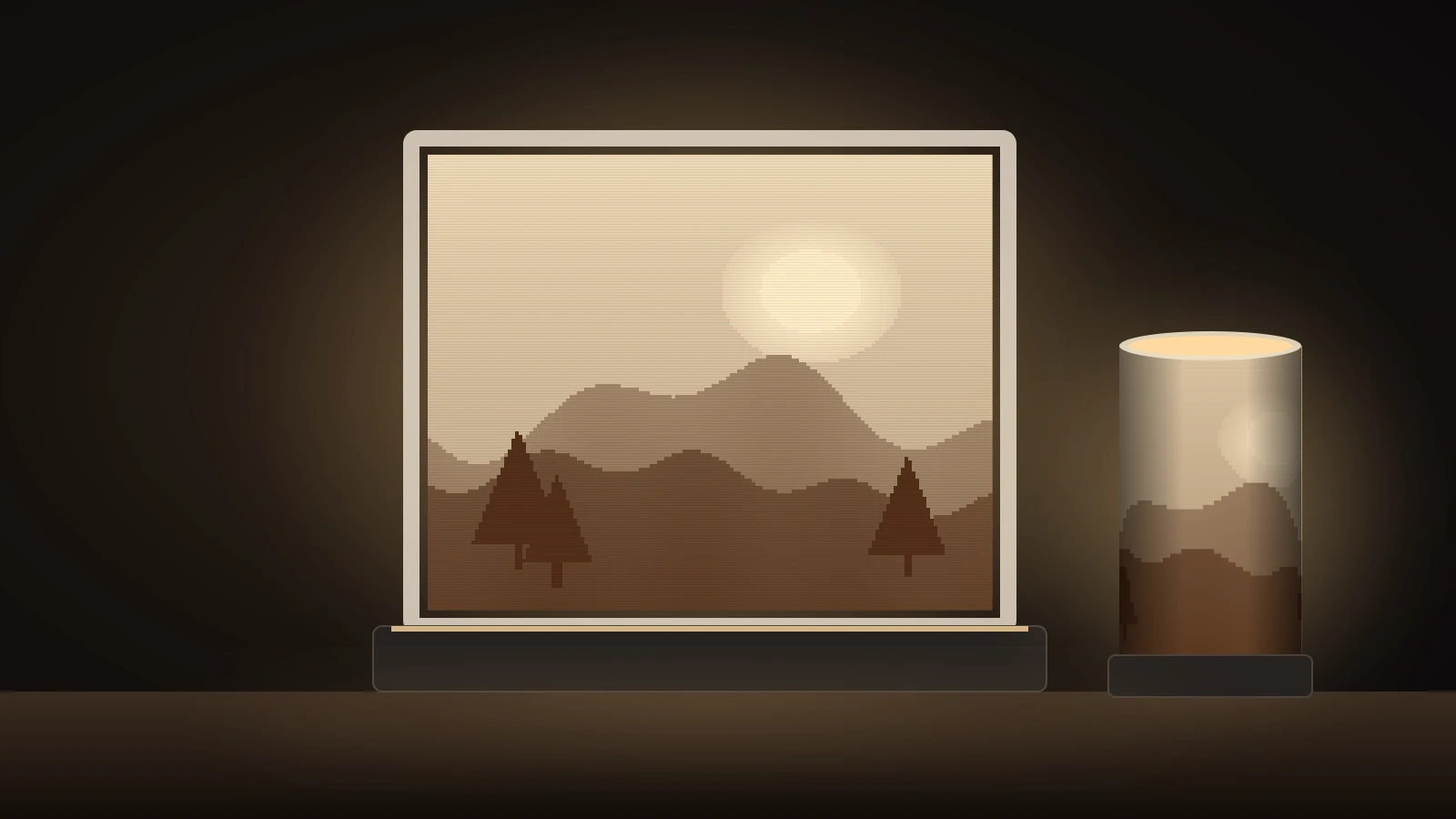
A lithophane 3D print is a thin panel whose thickness follows a photo, so the picture appears when light shines through it: thick areas look dark, thin areas glow. To make one, convert an image into an STL with ItsLitho or 3DP Rocks, print it upright in white PLA with solid infill and backlight it with an LED.
Lithophanes are a classic form of 3D printed art: a plain-looking white panel turns into a detailed photograph the moment you hold it up to a window. No modeling skill is needed; if you later want to design your own frames and stands, see our comparison of free CAD software for 3D printing.
The short answer
| Step | What to do | Where the value comes from |
|---|---|---|
| Photo | High contrast, simple background, cropped tight | General practice |
| Convert | ItsLitho, 3DP Rocks or Cura’s image import | Each tool’s own documentation |
| Thickness | About 3 mm maximum, 0.8 mm thinnest | 3DP Rocks defaults |
| Filament | White PLA (white or silver/grey work best) | ItsLitho |
| Orientation | Upright, along the Y axis, with a brim | ItsLitho |
| Infill | 99%, or many walls with 0% infill | ItsLitho |
| Layer height | 0.12 mm; 0.2 mm at most | ItsLitho |
| Speed | 30 mm/s | ItsLitho |
| Light | LED behind the panel | Heat limit of PLA |
What is a lithophane and how does it work?
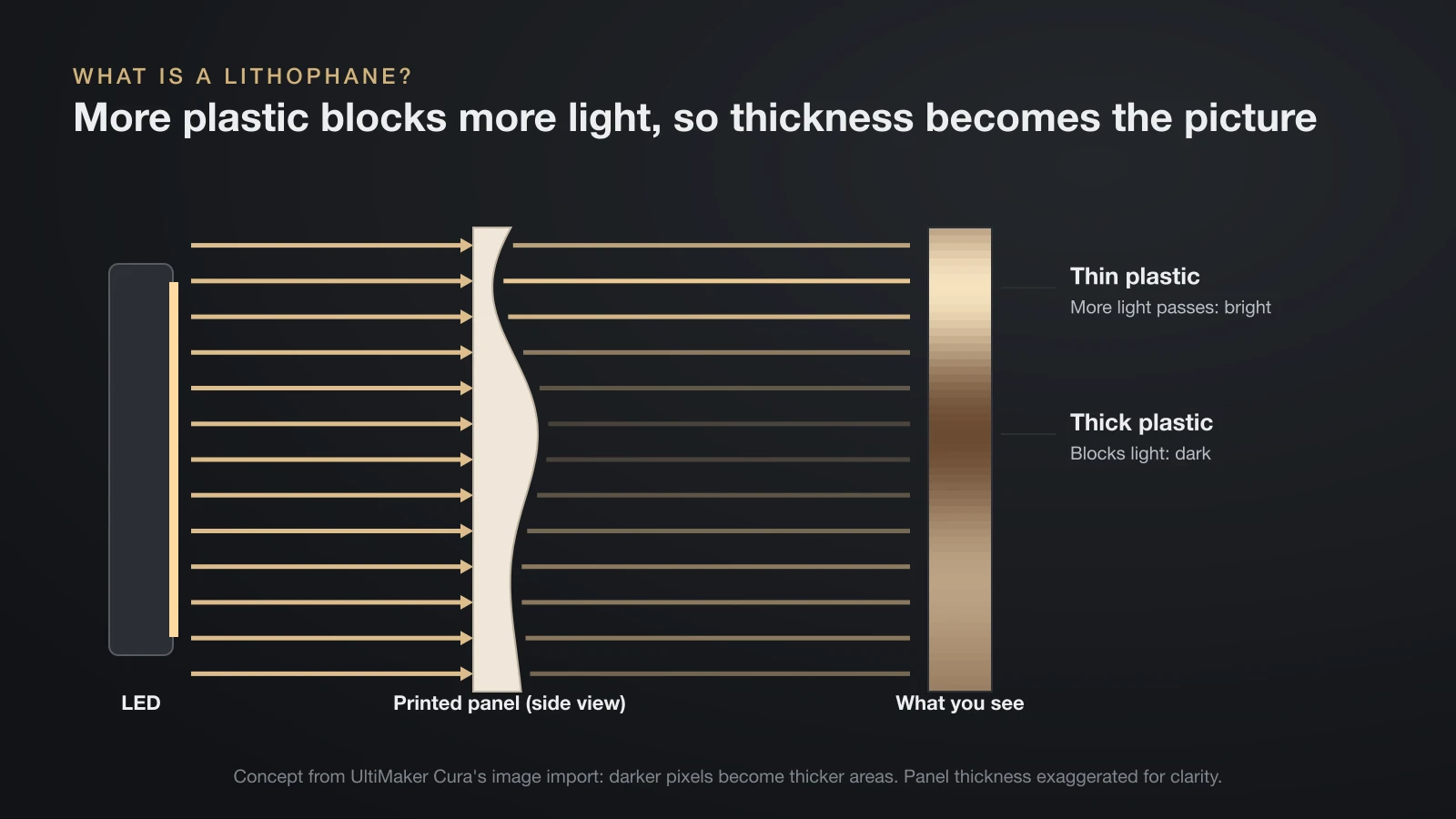
A lithophane is an image made only of varying thickness in a translucent material, invisible in normal light and clear when lit from behind. A 3D printer suits the job because it controls thickness precisely, layer by layer, from a grayscale image.
The principle is simple: more plastic blocks more light. UltiMaker Cura’s image import describes it this way: for lithophanes, dark pixels should become thicker areas so they block more light. Cura even offers a translucency model, which converts brightness to thickness with a simple logarithmic curve instead of a straight line, to match how plastic absorbs light.
That is why a lithophane looks flat and almost blank on a table. In front of a lamp, the thin areas (sky, faces, highlights) glow bright while the thick areas (hair, shadows) stay dark.
How to 3D print a lithophane step by step
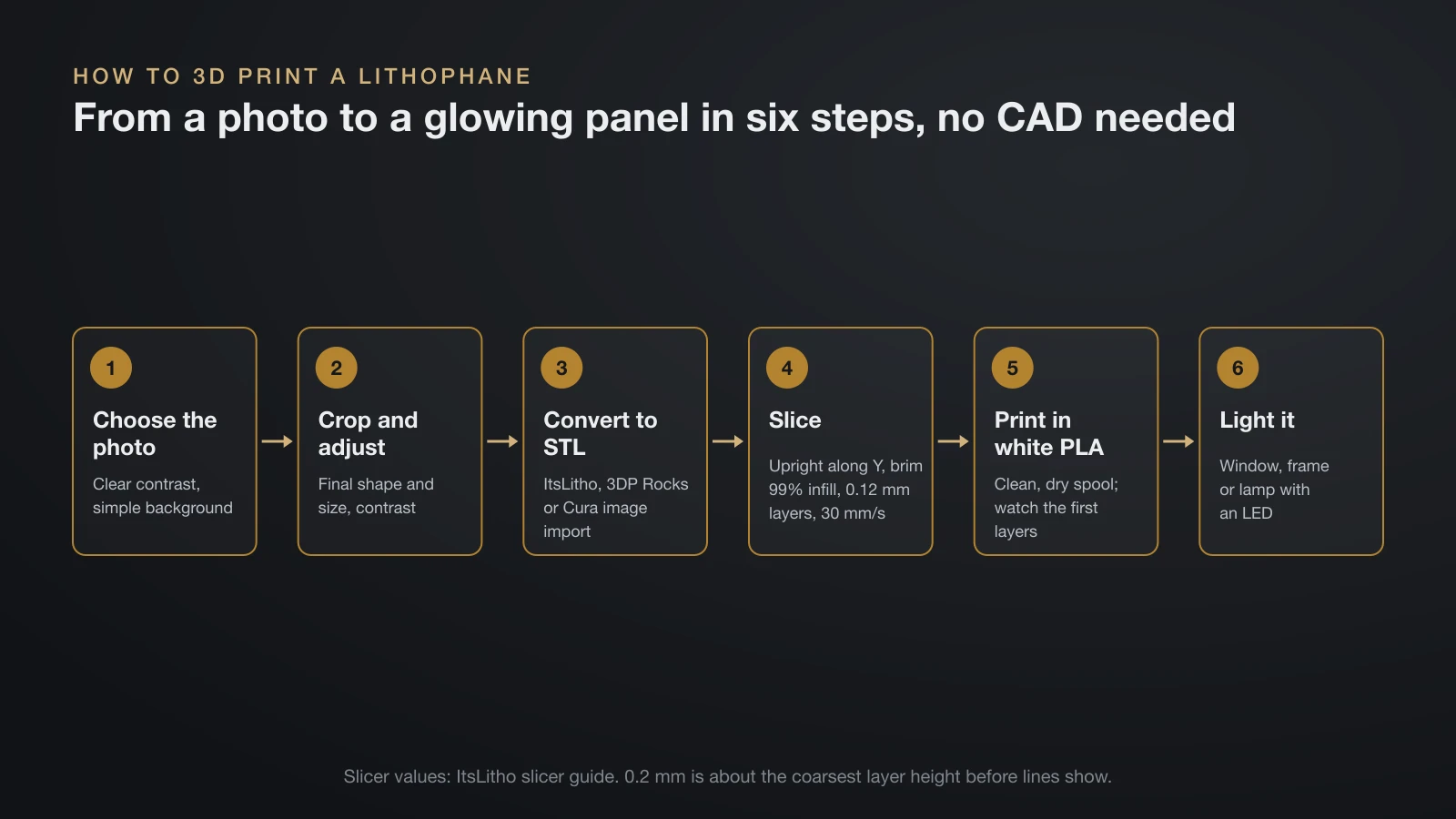
You can 3D print a lithophane in about six steps, and none of them require CAD software. The generator handles the model; the slicer settings decide the quality.
- Choose the photo. Pick an image with clear contrast and a simple background. Portraits, pets and landscapes with a defined subject work well; busy, low-contrast scenes turn muddy.
- Crop and adjust. Crop to the final shape and size. ItsLitho includes an editor for contrast adjustments, and it previews the result with simulated backlighting.
- Convert the image to an STL. Upload it to ItsLitho or 3DP Rocks, or open the JPG or PNG directly in UltiMaker Cura. Choose the shape, size and thickness (see the settings table below), then download the STL.
- Slice with lithophane settings. Set near-solid infill, a fine layer height and a slow speed, stand the panel upright and add a brim. Any slicer works; our guide to OrcaSlicer shows where these settings live.
- Print in white PLA. Use a clean, dry spool and watch the first layers so the tall, thin panel stays attached.
- Light it from behind. Hold it against a window or mount it in a frame or lamp with an LED light.
Free lithophane makers compared
Three free tools cover almost every lithophane: two browser generators and one slicer with a built-in converter. The table shows what each one offers according to its own pages.
| Tool | Runs in | Shapes | Notable features |
|---|---|---|---|
| ItsLitho | Browser | Plane, arc, cylinder, sphere, bell, vases, lamp shades, night lights and more | Image editor, backlit preview, color lithophanes, STL download |
| 3DP Rocks Image to Lithophane | Browser (also works offline) | Flat, inner curve, outer curve, solid cylinder, rectangular pillow, dome (top or side), heart | Open source; its help page says you may use the models commercially |
| UltiMaker Cura image import | Desktop slicer | Flat relief | Opens JPG, PNG, BMP and GIF; “Darker is higher” and a translucency model for lithophanes |
3DP Rocks runs entirely in your browser, and its help page says none of your image data goes online. If you print curved or round lithophanes, ItsLitho and 3DP Rocks both generate the shape for you; Cura’s import produces flat panels only.
Lithophane settings: thickness, border, image and shape
Lithophane settings come down to four choices: thickness range, border, positive or negative image, and shape. Start from the tool’s defaults and change one value at a time.
| Setting | What it controls | Starting value |
|---|---|---|
| Maximum size | Longest side of the panel | 100 mm (3DP Rocks default); 120 mm width (Cura default) |
| Thickness | Thickest point, for the darkest pixels | 3 mm (3DP Rocks); Cura: 0.4 mm base plus 2.5 mm height |
| Thinnest layer | Thinnest point, for the brightest pixels | 0.8 mm (3DP Rocks) |
| Border | Solid frame around the image | 0 mm by default; add a border for stiffness and a clean edge |
| Positive or negative | Whether light pixels become thin (positive) or thick | Positive for a normal photo |
| Shape and curve | Flat, curved, cylinder, dome, heart | Flat for a first print; curves stand up more easily |
| Vectors per pixel | Mesh detail per image pixel | 4 by default; 3DP Rocks calls 2 a good value |
Cura’s translucency model also asks for the “1 mm transmittance,” the share of light that passes through 1 mm of your filament. Its default of 50% is based on pearl PLA; lower values raise contrast in dark areas.
Thickness is a trade-off. A thicker maximum gives deeper blacks but needs a stronger light, while a thicker minimum dulls the highlights. ItsLitho notes that every filament has its own sweet spot and recommends a small calibration print before a full panel.
Best print settings for a lithophane 3D print
The best print settings for a lithophane 3D print make the panel completely solid and keep the vertical detail fine. ItsLitho’s own slicer guide gives these values.
- Orientation: always print standing up. A printer is far more precise across the build plate than between layers, so an upright panel puts the fine detail where the printer is most accurate.
- Axis: on a bed-slinger printer, align the panel along the Y axis; oriented along X, it wobbles as the bed moves.
- Infill: 99% instead of 100%, which keeps the panel solid while saving time. The alternative is 0% infill with enough walls to fill the thickest point: maximum thickness divided by line width, divided by 2. For a 3.2 mm panel and 0.4 mm lines, that is 4 walls.
- Layer height: 0.12 mm, and about 0.2 mm at the coarsest before lines show. Pick a value your printer’s Z axis can step evenly; our guide to 3D printing layer height explains why.
- Speed: 30 mm/s for the best result.
- Adhesion: a brim rather than a raft.
- Supports: only for round, star and heart shapes, placed touching the build plate, with a concentric pattern.
White PLA is the standard filament, and ItsLitho names white and silver or grey as the colors that work best. Basic matte or standard PLA filament prints easily at these slow speeds; save specialty blends for later.
How to light a lithophane safely
An LED light is the right choice for a lithophane because it gives bright light with little heat. Light it evenly from behind, with the light spread across the whole panel, so the image shows without a bright hot spot in the middle.
Heat is the real limit. Prusament PLA has a heat deflection temperature of 55 °C (131 °F) at 0.45 MPa, so a panel sitting close to a hot incandescent or halogen bulb can sag and warp. LED strips, puck lights and battery tea lights stay much cooler; our guide to the PLA melting point explains where PLA starts to soften.
ItsLitho’s shape library includes frames, lamp shades, puck light holders and night lights that are designed around these light sources. A cylinder or lamp-shade lithophane over an LED base makes a simple night light.
3D printed pictures that are not lithophanes
Not every 3D printed picture is a lithophane, and the other kinds work without backlighting. Three are common.
- 3D printed picture frames: a frame printed in any color holds a normal paper photo. Model libraries list countless designs, and simple frames are an easy first design project in Tinkercad.
- Color lithophanes: a normal white lithophane with a color layer behind it. ItsLitho’s method needs only one filament color: the tool generates a matching color image that you print on a paper or transparent sheet at 100% scale and glue to the back of the panel.
- Flat multicolor pictures: layers of differently colored filament build up the image so it shows in ordinary light. These need a printer with a filament changer or several tool heads; our guide to multi-color 3D printers explains the options.
Troubleshooting lithophane prints
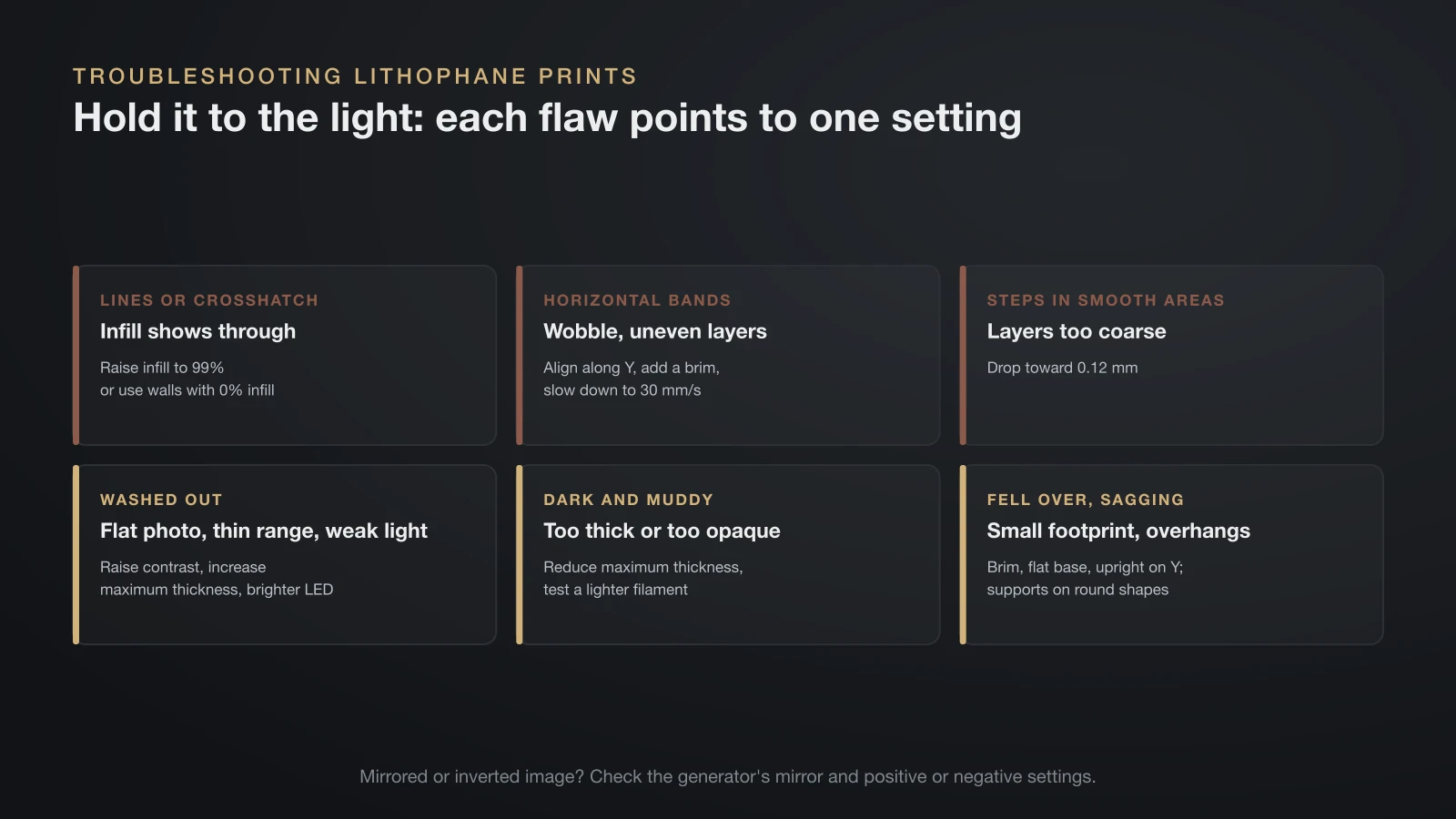
Most lithophane problems show up only when you hold the print to the light, and each one points to a specific setting. Use this table to match the flaw to the fix.
| Problem | Likely cause | Fix |
|---|---|---|
| Visible lines or a crosshatch pattern | Infill pattern showing through | Raise infill to 99% or use walls with 0% infill |
| Horizontal bands | Panel wobbling, or uneven layers | Align along the Y axis, add a brim, slow down to 30 mm/s |
| Steps between layers in smooth areas | Layer height too coarse | Drop toward 0.12 mm |
| Washed-out, low-contrast image | Photo too flat, thickness range too small, or weak light | Raise contrast before converting, increase maximum thickness, use a brighter LED |
| Dark, muddy image | Panel too thick or filament too opaque | Reduce maximum thickness, test a lighter filament |
| Panel fell over or detached | Tall part on a small footprint | Add a brim, keep the base flat, print upright along Y |
| Round shape sagging | Overhangs without support | Add supports touching the build plate, concentric pattern |
If the image looks mirrored or inverted, check the generator’s mirror and positive or negative settings before printing again.
The bottom line
A lithophane 3D print needs no design skills: convert a contrasty photo in ItsLitho, 3DP Rocks or Cura, print it upright in white PLA at 99% infill and a fine layer height, then light it with an LED. Start with the generator defaults (about 3 mm thick, 0.8 mm thinnest) and print a small test before a large panel. Keep hot bulbs away, because PLA softens at around 55 °C.
Sources
- ItsLitho: Lithophane designer (shapes, image editor, backlit preview, STL download), How to make a color lithophane (one filament color plus a printed color sheet at 100% scale) and Slicer settings for lithophanes (upright, Y axis, 99% infill, wall formula, 0.12 mm and 0.2 mm layers, 30 mm/s, brim, supports, white and silver/grey filament)
- 3DP Rocks: Image to Lithophane and its open-source repository (default 100 mm size, 3 mm thickness, 0.8 mm thinnest layer, 0 mm border, vectors per pixel, shapes, positive/negative image, commercial use, offline use)
- UltiMaker Cura: ImageReader plugin source (image formats, “Darker is higher,” translucency model, 0.4 mm base and 2.5 mm height defaults, 120 mm width, 50% transmittance at 1 mm based on pearl PLA)
- Prusa Research: Prusament PLA and its data sheet (heat deflection temperature 55 °C at 0.45 MPa)