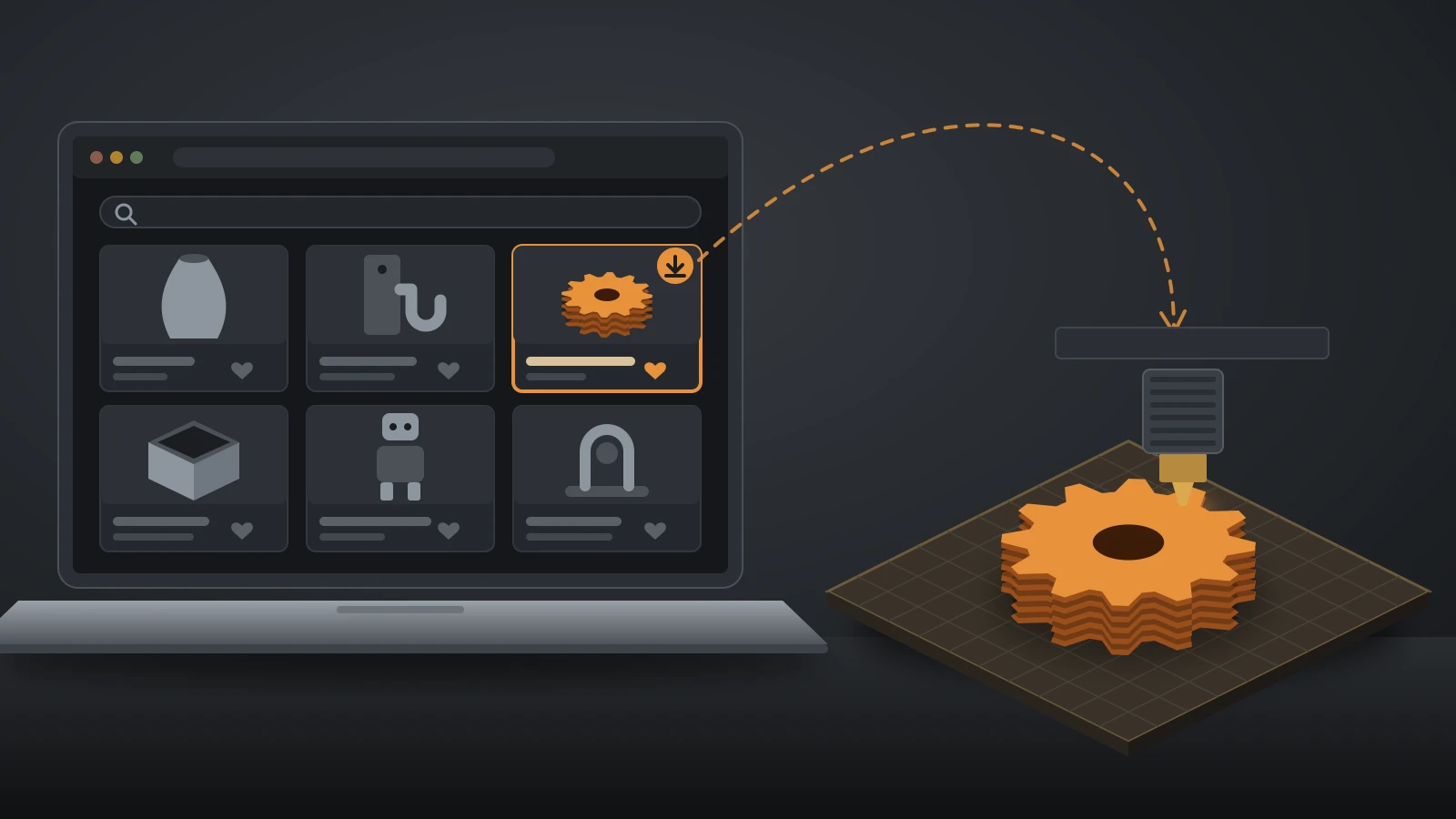
Thingiverse 3D prints come from a free library of community designs: search for a model, check its makes and comments, download the STL or 3MF files, open them in a slicer, then slice and print. Before sharing or selling anything, read the license on the model page, because it decides what you may do with the prints.
Thingiverse is the oldest of the big model libraries, so it holds a huge archive of designs and remixes, but it is no longer the only place to look. If you are still deciding what to make, start with our list of 3D print ideas.
The short answer
- Finding models: search by function (“cable clip”, “spool holder”), then favor designs with many makes, photos and recent comments.
- Downloading: grab the STL, 3MF or OBJ files, or send them straight to UltiMaker Cura with the Open in Cura button.
- Printing: open the files in your slicer, check scale and orientation, add supports if needed, slice to G-code and print.
- Licenses: many designs use Creative Commons licenses; an NC license forbids selling the prints.
- Alternatives: Printables, MakerWorld, Cults, Thangs and MyMiniFactory each add something Thingiverse lacks, from print profiles to paid designer files.
How to find good Thingiverse 3D prints
The best Thingiverse 3D prints are the ones other people have already printed successfully, so judge a design by its evidence, not its render. A rendered image only shows what the designer intended; makes show what actually came off real printers.
Use these checks before you download:
- Search by function, not theme. “Headphone hook under desk” finds more usable results than “desk stuff”. Add a size or product name, such as a phone model or a drawer width, when fit matters.
- Look at the makes. Photos from other users prove the design prints and show which materials and colors work.
- Read the comments. Users often report tolerance problems, missing files or a better remix.
- Check the remixes. An improved version of a popular design is often listed under the original as a remix.
- Read the print settings. Good designers list layer height, supports, infill and material in the description.
- Watch the date and file list. Older designs may target small printers or need parts you can no longer buy.
For themed searches, the same rules apply: a block-style castle or creeper model for our Minecraft 3D prints guide is only worth printing if others have printed it at your scale.
Thingiverse vs Printables vs MakerWorld and other model sites
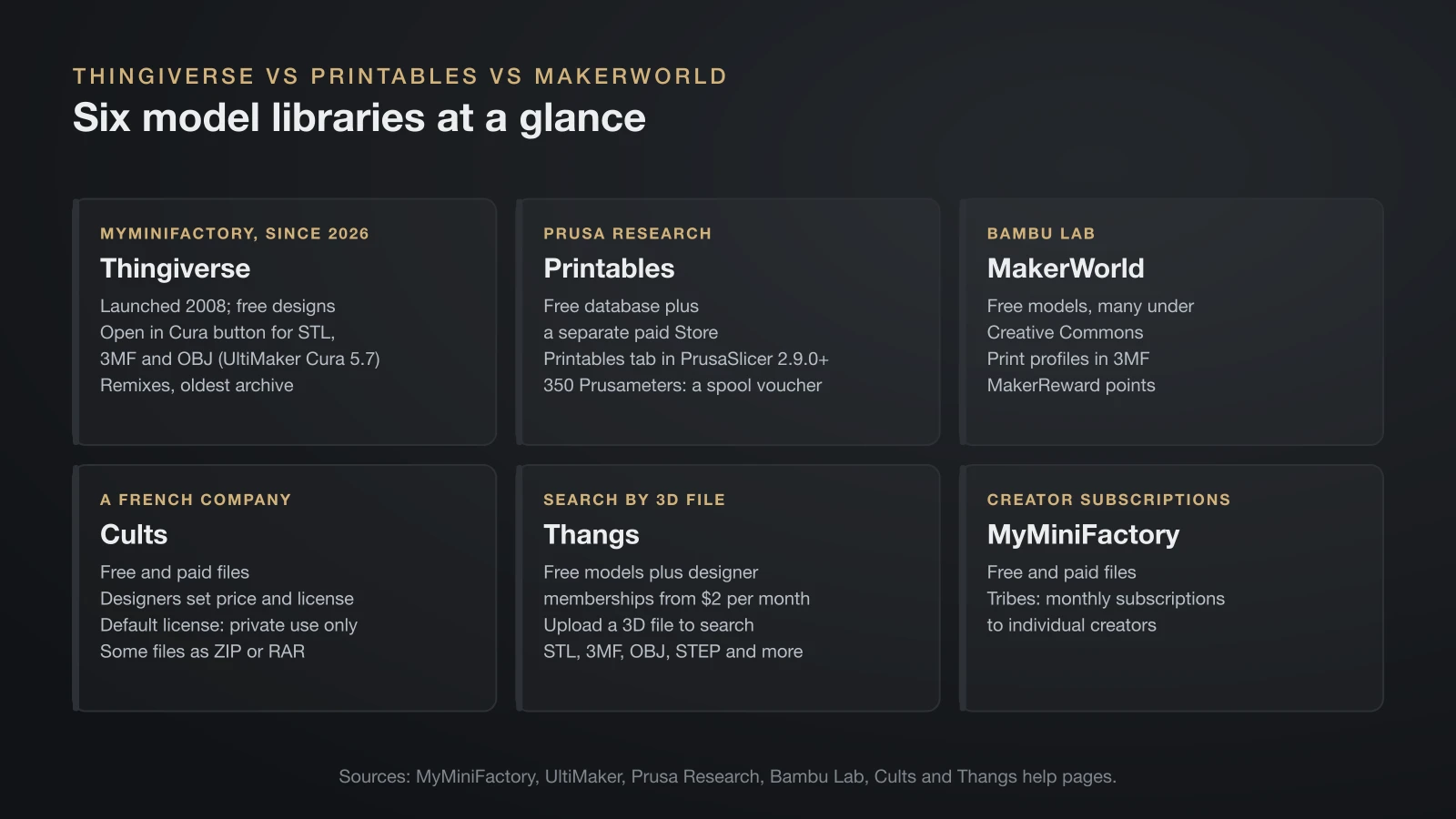
Thingiverse is one of six large model sites, and each has a different owner, business model and slicer link. Since February 2026, Thingiverse belongs to MyMiniFactory, which bought it from UltiMaker and says it will keep Thingiverse’s open sharing ethos while favoring verified human-made designs over AI-generated and non-printable ones.
| Site | Run by | Free or paid | Slicer link | Extras |
|---|---|---|---|---|
| Thingiverse | MyMiniFactory (since 2026; launched 2008) | Free designs | Open in Cura button for STL, 3MF and OBJ files, added in 2024 with UltiMaker Cura 5.7 | Remixes, oldest archive |
| Printables | Prusa Research | Free database plus a separate paid Store | Printables tab inside PrusaSlicer 2.9.0 and later | Prusameters rewards: 350 earn a voucher for a spool of Prusament PLA, PETG or ASA |
| MakerWorld | Bambu Lab | Free models, many under Creative Commons | Bambu Studio print profiles (3MF); one-step printing from the Bambu Handy app | Print profiles in 3MF; MakerReward points for models, filament, gift cards and printers |
| Cults | Cults, a French company | Free and paid files | Download files (sometimes as ZIP or RAR archives) | Designers set price and license; default license is private use only |
| Thangs | Thangs | Free models plus designer memberships from $2 per month | Download files | Search by uploading a 3D file; accepts STL, 3MF, OBJ, STEP and more |
| MyMiniFactory | MyMiniFactory | Free and paid files | Download files | Tribes: monthly subscriptions to individual creators |
The practical split is simple. For functional parts and classic designs, search Thingiverse and Printables. If you own a Bambu Lab printer, MakerWorld’s print profiles save setup time because they store print settings, orientation, plate arrangement and colors. For tabletop miniatures and premium art pieces, the paid creator stores on MyMiniFactory, Cults and Thangs are where many professional designers sell.
What the Printables Store changes
Paid files on Printables live in a separate Store tab, so the main database stays free. Prusa’s launch post says everything in the main database and search downloads without a paywall. At launch in December 2023, the Store set a $5 minimum price per model and a 20% Printables fee.
How to download and print Thingiverse 3D prints
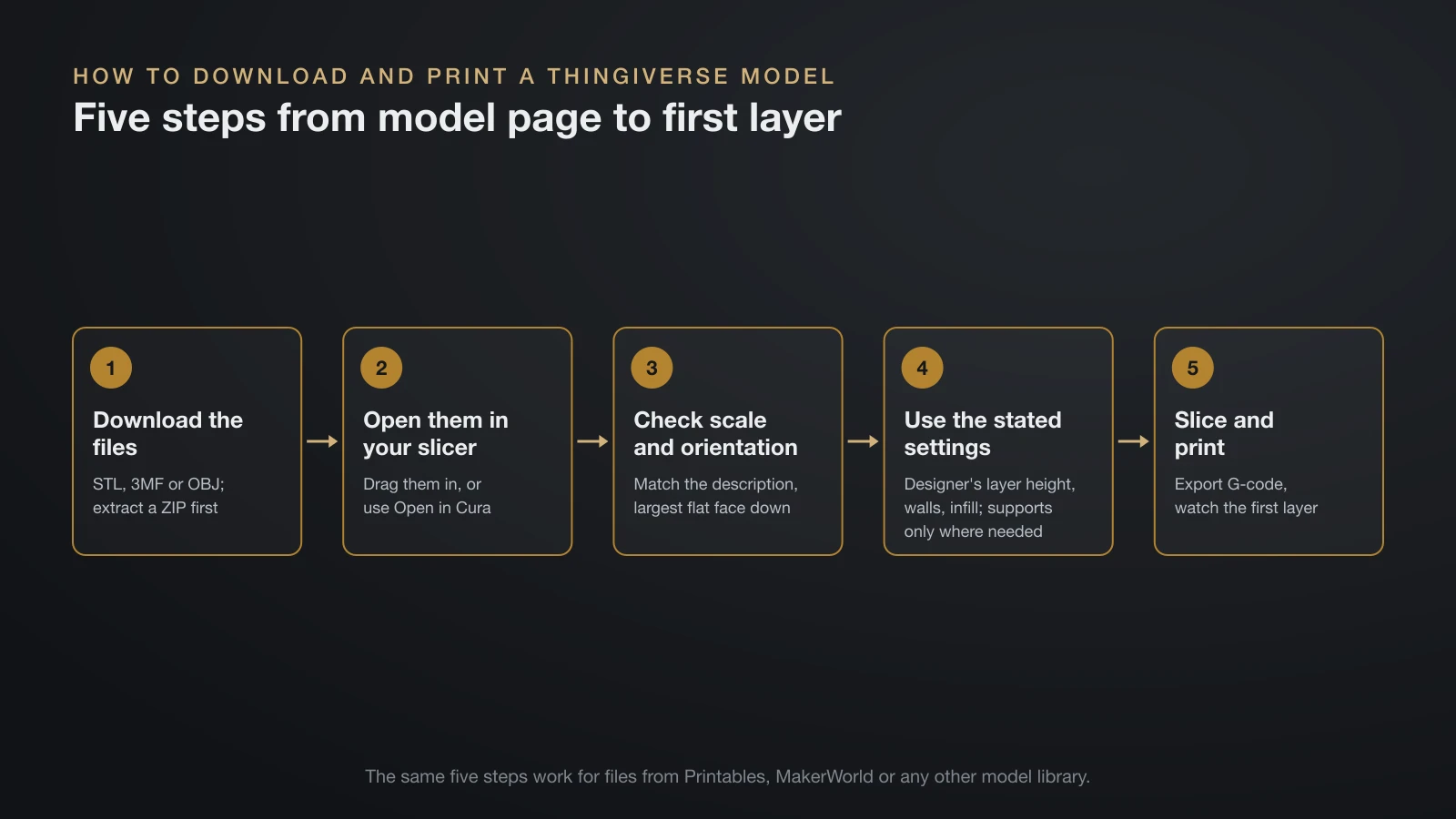
Downloading and printing a Thingiverse model takes five steps, and most problems are caught in the slicer before any plastic is used. The process is the same for files from any other library.
- Download the files. On the model page, download the parts you need. If the files arrive as a ZIP archive, extract it before you continue.
- Open them in your slicer. Drag the STL, 3MF or OBJ files into PrusaSlicer, Bambu Studio, OrcaSlicer or Cura. In UltiMaker Cura 5.7 and later, the Open in Cura button on Thingiverse loads a file directly, without saving it to your downloads folder.
- Check scale and orientation. Confirm the dimensions match the description, lay the largest flat face on the bed, and rotate parts so that loads run along the layers, not across them.
- Apply the designer’s settings. Use the stated layer height, walls and infill, and add supports only where the slicer shows overhangs that need them.
- Slice and print. Export G-code to your printer and watch the first layer.
The slicer turns the mesh into toolpaths; our guide to converting STL to G-code explains each setting that matters in that step.
File formats on Thingiverse and how to stay safe
Most Thingiverse 3D prints come as STL files, with 3MF, OBJ and source files such as OpenSCAD (.scad) or CAD formats also common. STL stores only the surface of the shape, while 3MF can also carry units, colors and print settings, which is why MakerWorld uses it for print profiles.
| File | What it contains | Open it in |
|---|---|---|
| STL | Triangle mesh of the surface, no units or color | Any slicer |
| 3MF | Mesh plus units, colors, plates and settings | Most current slicers |
| OBJ | Mesh, sometimes with color textures | Most slicers and mesh editors |
| STEP | Exact CAD geometry | CAD programs; some slicers |
| SCAD | OpenSCAD source code that generates the shape | OpenSCAD, then export to STL |
Model files are data that a slicer reads, not programs, so the safety rules are short:
- Never run executables. A model download should contain mesh, CAD, image and text files only. Delete any .exe, .bat, .msi or script that arrives with it.
- Download from the model page. Ignore links in comments that promise “full versions” on other sites.
- Be wary of renders without makes. AI-generated and non-printable uploads are a known problem, and makes are the best proof that a design works.
Thingiverse licenses: what you can do with a model
Every Thingiverse model carries a license chosen by its designer, and that license, not the site, sets your rights. Many designs use Creative Commons, which offers six licenses built from four elements:
| License element | What it means for you |
|---|---|
| BY (attribution) | Credit the designer when you share the model or prints |
| SA (share alike) | Share your remix under the same license |
| NC (noncommercial) | No commercial use, which includes selling prints |
| ND (no derivatives) | Share it only unmodified; no remixes |
Creative Commons defines noncommercial as use not primarily intended for commercial advantage or monetary compensation. If you plan to sell, filter for licenses without NC, or buy a commercial license from the designer; our guide to 3D print ideas to sell covers the rest of the business side.
Brands are a separate issue. A free model of a company logo or film character still carries trademark and copyright limits that its license cannot waive. If you want a logo on a print, design your own, as shown in our guide to 3D printing logos.
Where to find STL files besides Thingiverse
The other model libraries in the table are the first places to look for STL files when Thingiverse has nothing suitable. Search the same terms on Printables and MakerWorld, then check the paid stores if you need a specialist design.
When no library has the part, two routes remain:
- Model it yourself. Brackets, spacers, adapters and labels are simple shapes in free CAD programs; see how to make 3D models for printing for the workflow and design rules.
- Scan the object. A 3D scanner for 3D printing or a phone photogrammetry app captures complex curved shapes, which you then clean up and turn into a printable mesh.
When a Thingiverse model will not print well
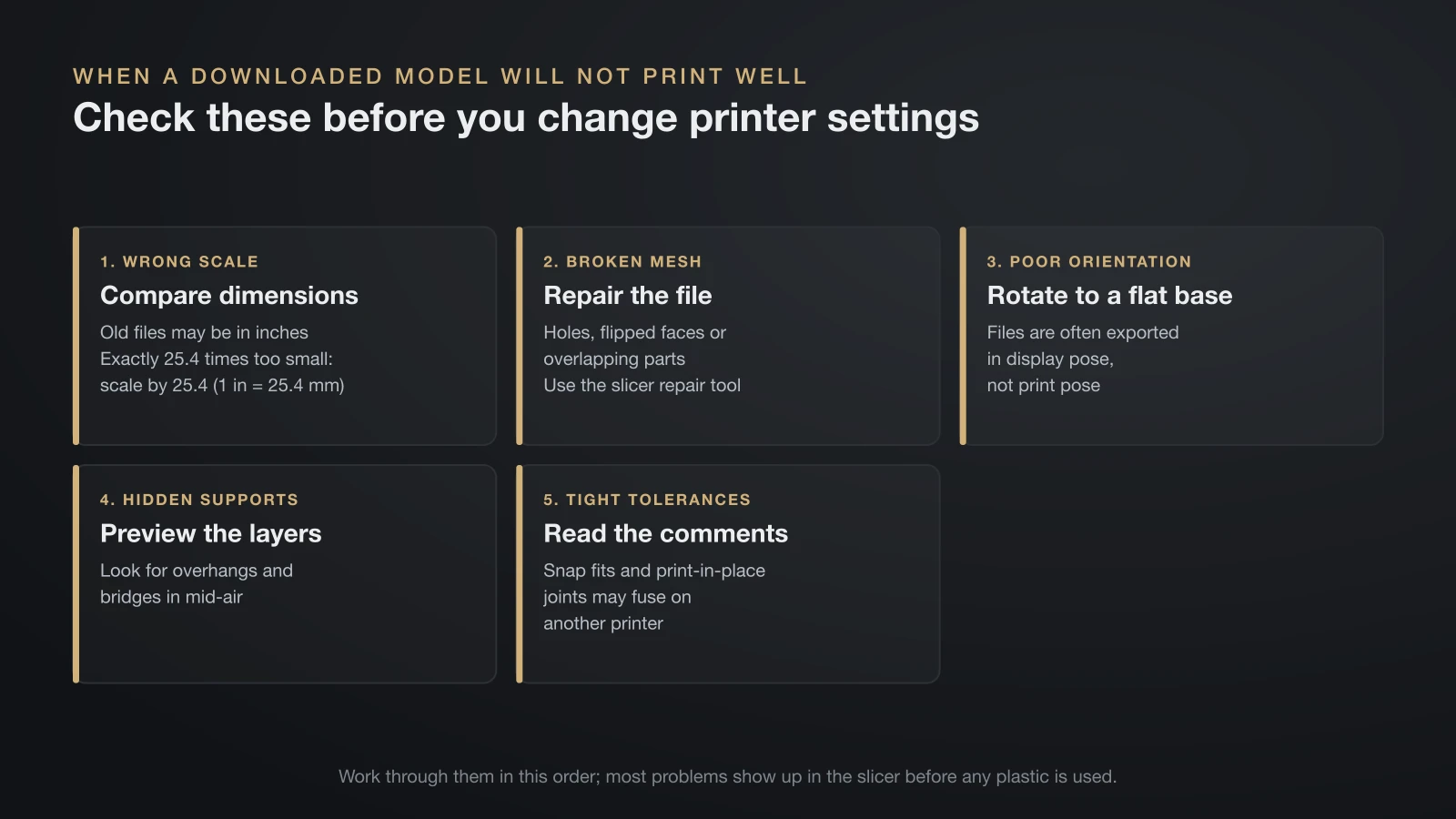
A Thingiverse model that fails usually has one of four fixable problems: wrong scale, a broken mesh, poor orientation or a design that needs supports the description never mentioned. Check them in this order before changing printer settings.
- Wrong scale: some older files were exported in inches or at the wrong size. Compare the slicer’s dimensions with the description and scale by 25.4 if a part is exactly 25.4 times too small, since 1 inch equals 25.4 mm.
- Broken mesh: holes, flipped faces or overlapping parts cause missing layers. Use the slicer’s repair tool, or fix the file using our guide on how to edit STL files.
- Poor orientation: files are often exported in display pose, not print pose. Rotate them to a flat base.
- Hidden support needs: preview the sliced layers and look for overhangs and bridges in mid-air.
- Tight tolerances: snap fits and print-in-place joints tuned on one printer may fuse on another; read the comments for clearance tips.
The bottom line
Thingiverse 3D prints are free to download and print, and the best results come from designs with many makes, clear settings and a license that matches your plans. Search Printables and MakerWorld alongside Thingiverse, use print profiles if your printer supports them, and check every file in the slicer before you print. For anything you plan to sell, the license on the model page is the first thing to read.
Sources
- MyMiniFactory and UltiMaker: MyMiniFactory acquires Thingiverse (acquired from UltiMaker on February 12, 2026; launched 2008; free designs; focus on human-made over AI-generated and non-printable designs), UltiMaker Cura 5.7 release notes (Open in Cura button for STL, 3MF and OBJ files on Thingiverse) and MyMiniFactory Tribes FAQ (monthly creator subscriptions)
- Prusa Research: Printables in PrusaSlicer (Printables tab from PrusaSlicer 2.9.0; STL and 3MF downloads), How do Prusameters work (350 Prusameters for a Prusament spool voucher) and Printables Store launch (December 2023; separate Store; $5 minimum price; 20% fee)
- Bambu Lab: MakerWorld platform announcement (Creative Commons models, MakerReward points, 3MF print profiles) and MakerWorld one-step printing (print profiles store settings, orientation and coloring; Bambu Handy cloud slicing)
- Cults and Thangs: Cults FAQ (French company; price and license set by designers; default private use license; ZIP and RAR archives) and Thangs support FAQ (supported file types; memberships from $2 per month set by designers)
- Creative Commons: About CC Licenses (six license types; BY, SA, NC and ND elements; definition of noncommercial)