
In the Orca Slicer vs Bambu Studio choice, both programs look and work much alike, because OrcaSlicer grew out of Bambu Studio’s code. Choose Bambu Studio if you own only Bambu Lab printers and want the maker’s official, simplest workflow. Choose Orca Slicer if you want built-in calibration tests, more tuning options or profiles for many printer brands.
Both are free, and the settings that matter most carry the same names in each; our guide to 3D printing slicer settings explains them. Below, you’ll also find how Orca compares with UltiMaker Cura and with PrusaSlicer, plus a decision table by printer brand.
The short answer
| Bambu Studio | Orca Slicer | UltiMaker Cura | PrusaSlicer | |
|---|---|---|---|---|
| Made by | Bambu Lab | Open-source community | UltiMaker | Prusa Research |
| License | AGPL-3.0 | AGPL-3.0 | LGPL-3.0 (engine AGPL-3.0) | AGPL-3.0 |
| Code family | Slic3r family | Slic3r family | Separate codebase | Slic3r family |
| Built-in printer coverage | Bambu Lab plus 11 others | More than 60 | Hundreds of printer definitions | Prusa plus many others |
| Stand-out tools | Official Bambu tuning, simplest Bambu printing | Calibration menu, Precise Wall, many print hosts | Marketplace plugins and profiles | Paint-on tools, Printables downloads |
| Suits | Bambu Lab owners who want it simple | Tinkerers, mixed fleets, Klipper | UltiMaker owners, plugin users | Prusa owners |
Brand counts come from the vendor profile files in each project’s GitHub repository on September 30, 2026.
How Orca Slicer and Bambu Studio are related
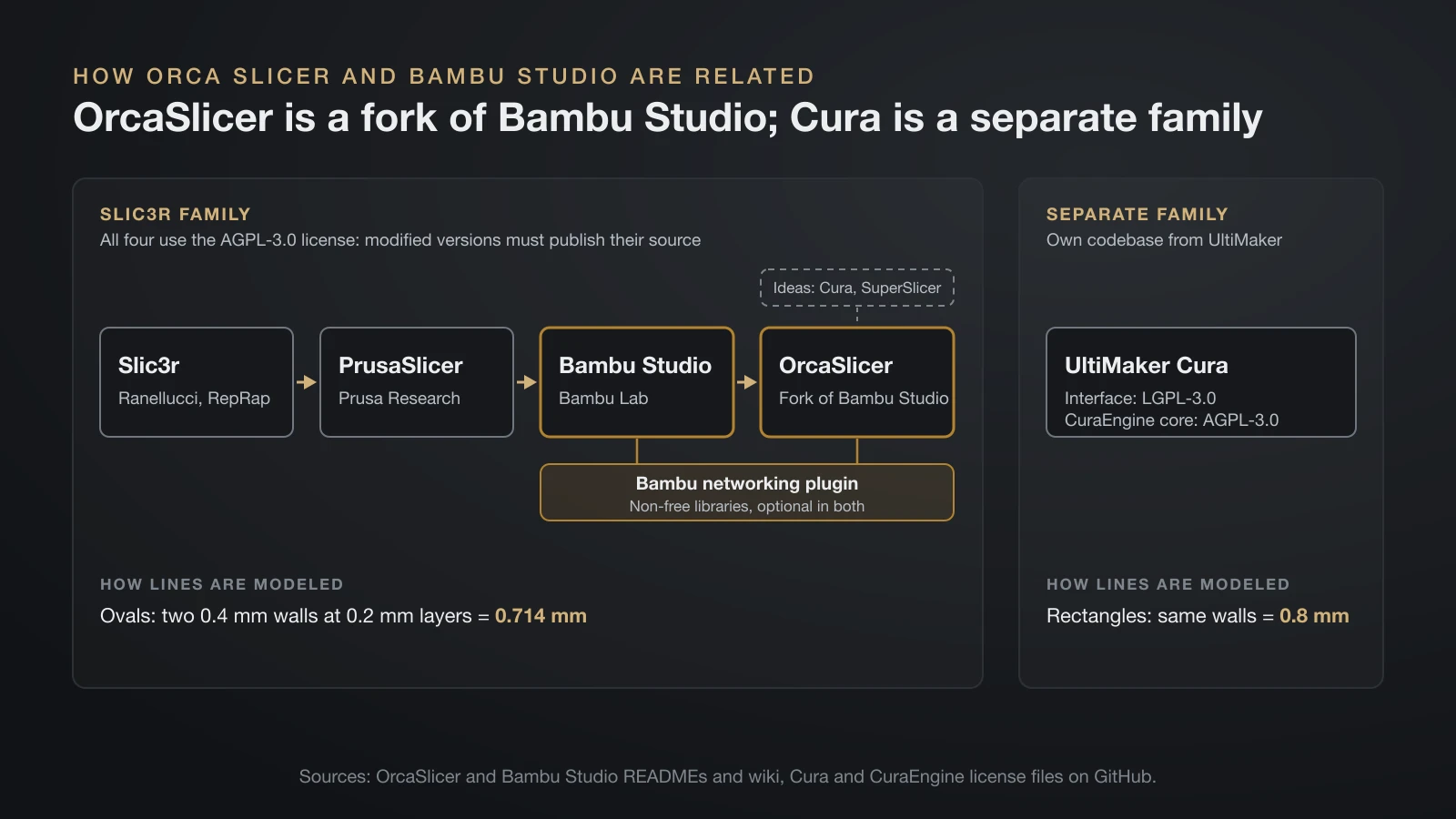
Orca Slicer and Bambu Studio are close relatives in one family tree of open-source slicers. Bambu Studio’s README says it is based on PrusaSlicer by Prusa Research, which comes from Slic3r by Alessandro Ranellucci and the RepRap community.
OrcaSlicer’s own history section names the same chain and adds that it drew from Bambu Studio and PrusaSlicer, with ideas inspired by Cura and SuperSlicer. All four projects in the Slic3r line use the GNU Affero General Public License version 3 (AGPL-3.0), so anyone who ships a modified version must publish the source code. For the printers behind these slicers, see our Bambu Lab vs Prusa comparison.
There is one closed piece in both programs: the Bambu networking plugin. Both READMEs describe it as based on non-free libraries and optional. Without it, Bambu Studio still slices, and you start prints from the SD card.
What Orca Slicer adds over Bambu Studio
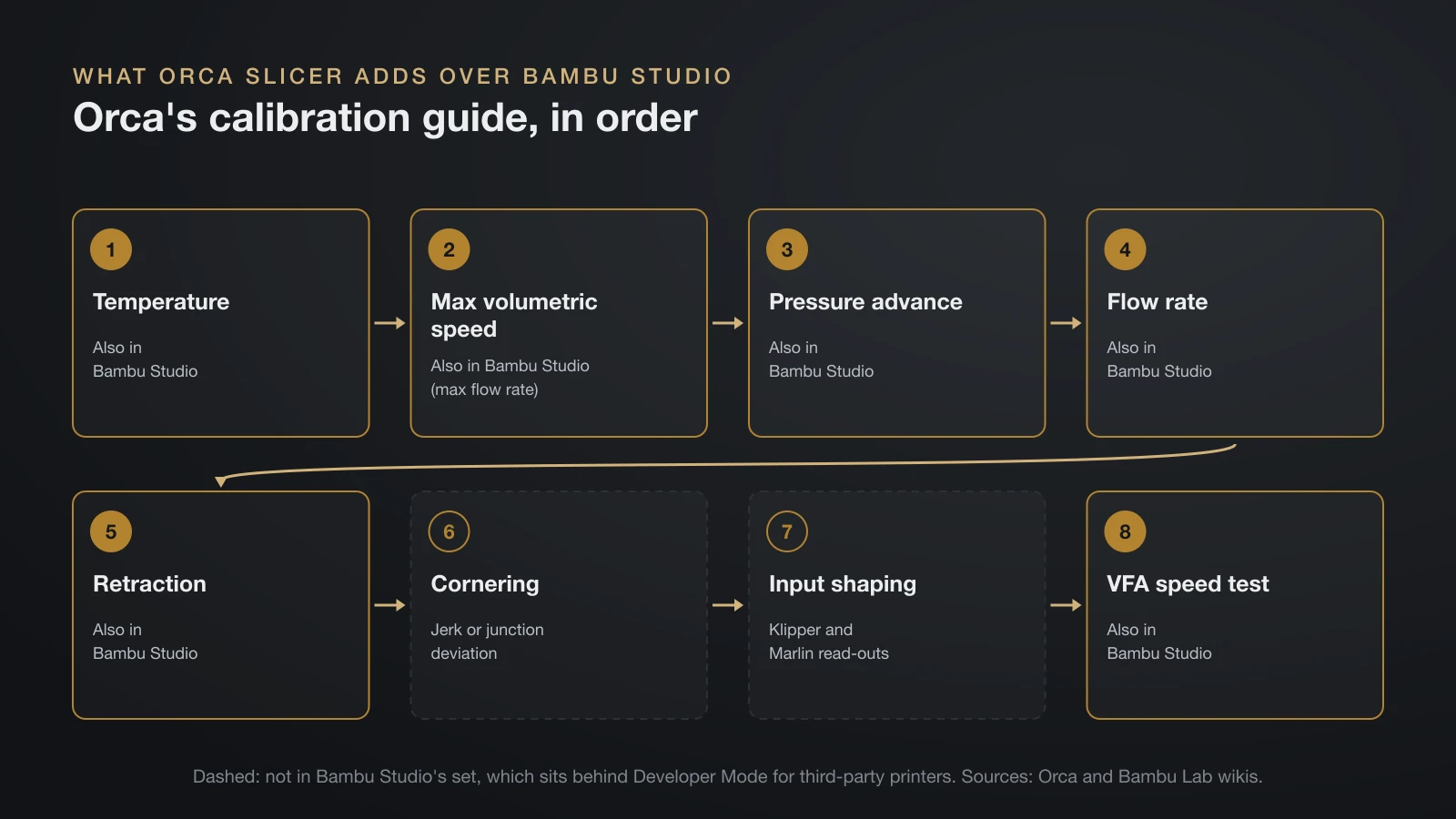
Orca Slicer adds a larger calibration menu, far more printer profiles and more ways to send jobs to non-Bambu printers. Its README also lists extras such as Precise Wall, scarf seams, polyholes and adaptive bed meshing.
Calibration tests
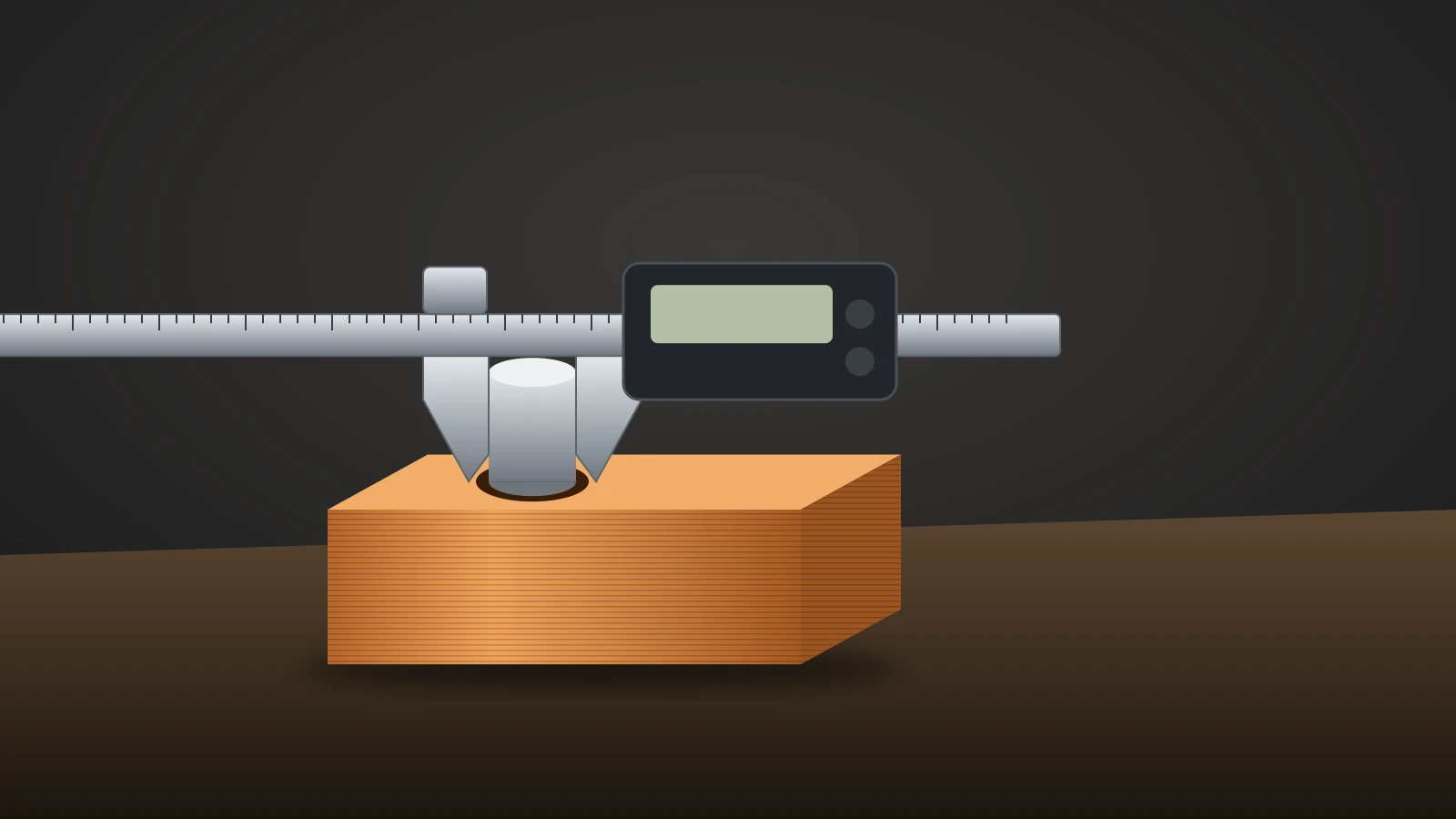
OrcaSlicer’s calibration guide runs these tests in order: temperature, maximum volumetric speed, pressure advance, flow rate, retraction, cornering (jerk or junction deviation), input shaping and a vertical fine artifacts (VFA) speed test. A tolerance test and adaptive pressure advance sit alongside them. Each test prints a model and tells you how to read the result.
Bambu Studio has a similar set of temperature, flow, pressure advance, retraction, max flow rate and VFA tests for third-party printers. Bambu Lab’s wiki says they are hidden until you turn on Developer Mode in Preferences, and that the feature was partly inspired by Orca Slicer. Orca’s input shaping test has read-out steps for both Klipper and Marlin printers; our guide to input shaping explains what it fixes.
If you run Orca’s flow or pressure advance tests on a Bambu Lab printer, Orca’s wiki says to leave the printer’s own “Flow calibration” option unticked when sending the job.
Printer profiles and print hosts
OrcaSlicer’s repository holds vendor profiles for more than 60 printer makers, from Anycubic and Creality to Voron, Prusa and UltiMaker. Bambu Studio’s repository holds profiles for Bambu Lab and 11 other brands. Both let you build a custom printer from its bed size and nozzle.
For non-Bambu printers, Orca can upload G-code to many print hosts, including OctoPrint, Moonraker (Klipper), PrusaLink, Prusa Connect, Duet and Creality Print. Klipper users should add the [exclude_object] and [gcode_arcs] sections to printer.cfg, as Orca’s README recommends.
What Bambu Studio does better for Bambu Lab printers
Bambu Studio is the official software for Bambu Lab printers, so it comes with Bambu’s own tuning, documentation and support. Bambu Lab’s wiki guides are written for Bambu Studio, and its printer, filament and process profiles are tuned for its machines.
Its main features, per its README, include multiple plates per project, remote control and monitoring, auto-orient and auto-arrange, hybrid, tree and normal supports, painting tools, STEP import and an auto brim based on mechanical analysis.
The printing path is also simplest in Bambu Studio. Bambu Lab’s wiki says that on printers with its authorization firmware, starting a print from any software other than Bambu Studio requires Bambu Connect. OrcaSlicer is a community project, so help comes from its GitHub issues and Discord rather than a support ticket.
Printing to a Bambu Lab printer from Orca Slicer
Orca Slicer can send jobs to Bambu Lab printers, but Bambu’s firmware rules decide how. Bambu Lab’s third-party integration page lists three routes:
- Bambu Connect: a separate app that takes a sliced G-code or 3MF file and sends it to the printer over the cloud or LAN. Bambu’s download page still labeled it beta in September 2026.
- Developer Mode: a LAN-only printer setting that turns off the authorization check, so third-party software works as before. The printer cannot use Bambu Cloud in this mode.
- SD card: printing from the card is not affected by authorization at all.
Third-party slicers can also bundle Bambu’s newest network plugin for firmware updates, live video and file downloads. OrcaSlicer offers that plugin as an optional install.
One change affects Orca users who synced presets through their Bambu account: starting with OrcaSlicer 2.4, Orca no longer syncs presets through Bambu Cloud and uses its own OrcaCloud instead. Orca’s wiki says printer communication through Bambu Cloud is unaffected, and your old presets stay in a numbered folder you can copy back.
Orca Slicer vs Cura
Orca Slicer and UltiMaker Cura come from different code families, so their settings do not map one to one. Cura is UltiMaker’s slicer; its interface is licensed under LGPL-3.0 and its CuraEngine slicing core under AGPL-3.0.
The difference shows up in flow math. Orca’s wiki explains that Slic3r-family slicers treat an extruded line as oval, so two 0.4 mm walls at a 0.2 mm layer height add up to 0.714 mm, while Cura treats lines as rectangles and gets 0.8 mm. Copying wall or flow numbers from one program to the other can therefore change wall thickness.
| Orca Slicer | UltiMaker Cura | |
|---|---|---|
| Support types | Normal and tree, with grid, snug, organic and tree styles | Normal and tree |
| Add-ons | Python plugin system in nightly builds | Marketplace plugins and material profiles |
| Network printing | Many print hosts, Bambu plugin | UltiMaker printers; plugins such as OctoPrint Connection |
| Printer coverage | More than 60 brands | Hundreds of printer definitions |
Cura’s Marketplace is its strength: UltiMaker describes it as downloadable plugins and print profiles that sync to your UltiMaker account. Both programs offer normal and tree supports; our guide to 3D printing supports covers how each slicer names them.
Orca Slicer vs PrusaSlicer
Orca Slicer and PrusaSlicer share their Slic3r roots and license, so the choice comes down to your printer and workflow. PrusaSlicer is built around Prusa printers, with one-click model downloads from Printables, and Prusa runs each stable release through public alpha and beta rounds first.
PrusaSlicer also bundles profiles for other brands, including Creality, Anycubic, Elegoo, Voron and UltiMaker. Orca has its own versions of PrusaSlicer’s headline tools, including support painting, seam control and organic supports; Bambu Lab says its organic style was ported from PrusaSlicer.
Orca’s edge is again calibration and breadth: more brands, more print hosts and Bambu printer support in one program. PrusaSlicer’s .ini configuration files are not among the file types Orca’s Import Configs dialog accepts, so recreate a Prusa setup from Orca’s built-in Prusa profiles instead.
Profiles, 3MF projects and switching slicers
Switching from Bambu Studio to Orca Slicer is straightforward, because your models and most of your settings can come along. A 3MF project file can hold the model plus printer, filament and process settings. Orca’s wiki says it tries to read those settings when you open a 3MF and ignores any it cannot use.
- Install from an official channel. Use OrcaSlicer’s GitHub releases, orcaslicer.com, the Microsoft Store, winget, Homebrew or Flathub. The project warns about fake sites that imitate it; our Orca Slicer setup guide lists the official download links.
- Add your printer. Pick your Bambu Lab model and nozzle from Orca’s built-in profiles.
- Export your Bambu Studio presets. Save changes as user presets, then use File, Export, Export Preset Bundle and pick the printer, filament or process presets (.zip) option.
- Import them into Orca. Use File, Import, Import Configs; it accepts .json, .zip and Orca’s own bundle formats.
- Test before trusting. Print a small part with each imported preset and compare it with the same part from Bambu Studio.
Moving the other way works the same, and our guide to 3D printing slicer settings shows how to export an Orca preset bundle. Whatever slicer you use, it still produces the same thing: G-code for your printer, as our STL to G-code explainer shows.
Which slicer should you use? Decision table by printer
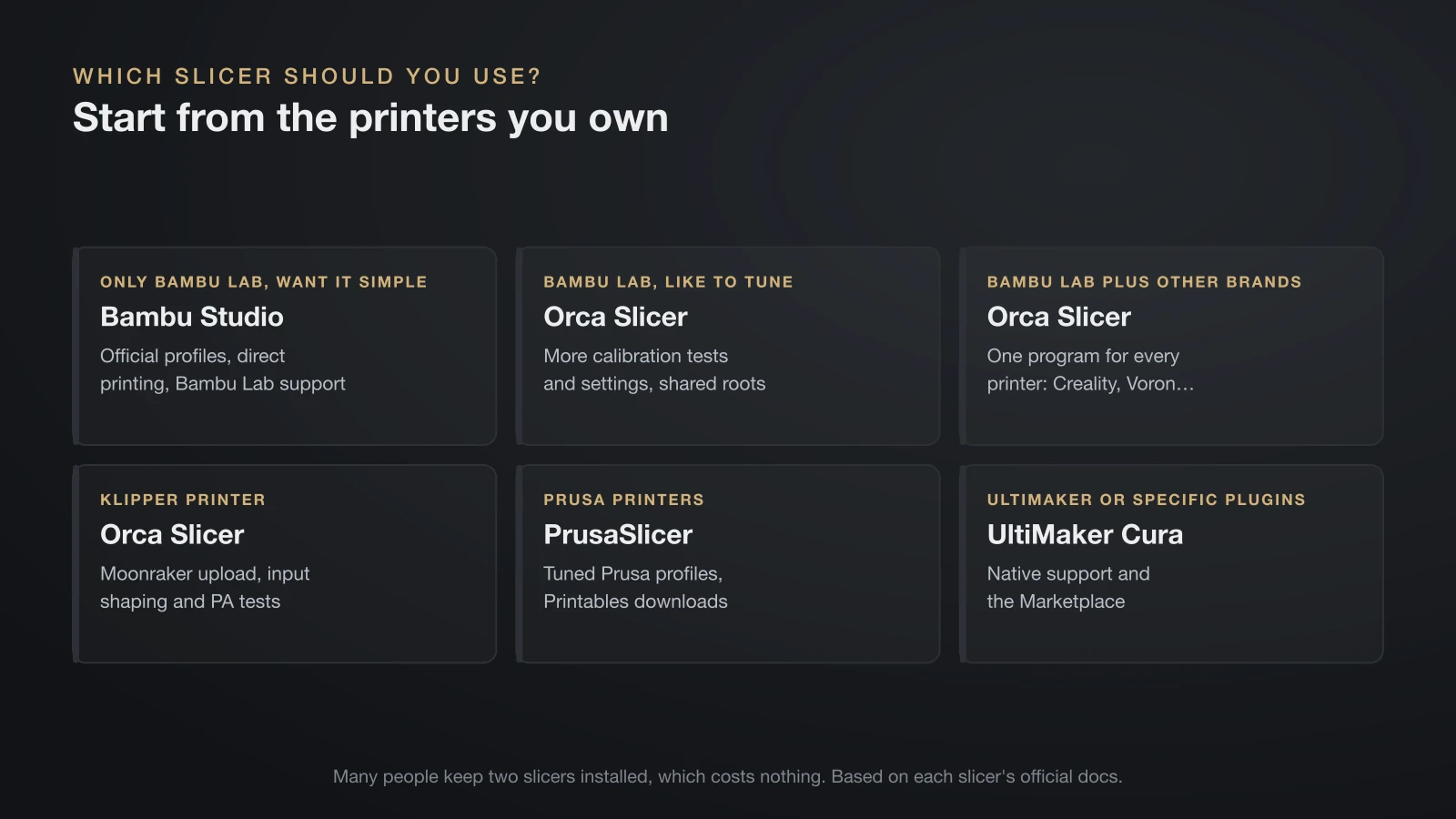
The right slicer depends mostly on which printers you own and how much you like to tune. Many people keep two installed, which costs nothing.
| Your setup | Start with | Why |
|---|---|---|
| Only Bambu Lab printers, want it simple | Bambu Studio | Official profiles, direct printing, Bambu Lab support |
| Bambu Lab printers, like to tune | Orca Slicer | More calibration tests and settings, shared roots |
| Bambu Lab plus Creality, Voron or others | Orca Slicer | One program for every printer |
| Klipper printer | Orca Slicer | Moonraker upload, input shaping and pressure advance tests |
| Prusa printers | PrusaSlicer | Tuned Prusa profiles, Printables downloads |
| UltiMaker printers or specific plugins | UltiMaker Cura | Native support and the Marketplace |
The bottom line
Orca Slicer vs Bambu Studio is less a quality contest than a question of control: they grew from the same code, and Orca adds calibration tests, extra settings and profiles for more than 60 brands. Stay with Bambu Studio if you run only Bambu Lab printers and want the official path; move to Orca if you tune or own several brands. Cura remains the pick for UltiMaker printers and plugins, and PrusaSlicer for Prusa machines.
Sources
- OrcaSlicer: GitHub README and license, releases, vendor profiles, print host list and Import Configs file types; OrcaSlicer Wiki pages on the calibration guide, Precise Wall, import and export, user profiles and plugins (history, AGPL-3.0, tests, 0.714 mm vs 0.8 mm walls, 60+ vendors, hosts, OrcaCloud, official download channels)
- Bambu Lab: Bambu Studio README, vendor profiles and preset export source; Wiki pages on third-party integration, Bambu Connect, calibration for third-party printers and support filament (lineage, networking plugin, authorization, Developer Mode, SD card printing, preset export, RFID)
- UltiMaker: Cura repository and license, CuraEngine, printer definitions, the Marketplace explained and the OctoPrint Connection plugin (LGPL-3.0 and AGPL-3.0, normal and tree supports, plugins and profiles)
- Prusa Research: PrusaSlicer on GitHub and the Knowledge Base articles Download PrusaSlicer and Profiles for 3rd party printers (Slic3r origin, release process, bundled brands)